Over the last three months we have added a lot to ChurchMMS. Many of these ideas came from pastors and church
teams who use it every week. This page explains each new feature in plain words: what it does, why it helps
your church, and where to find it.
Everything below is already switched on for every church. You don't need to install anything.
A first visit is the most important visit. These changes make it easier to welcome new people, keep track of where each one is, and make sure nobody slips through the cracks.
A new 1st Time Guests menu
Everything to do with new people now sits together under one menu called 1st Time Guests. You no longer have to hunt for guest tools under Members, Follow-up and Settings.
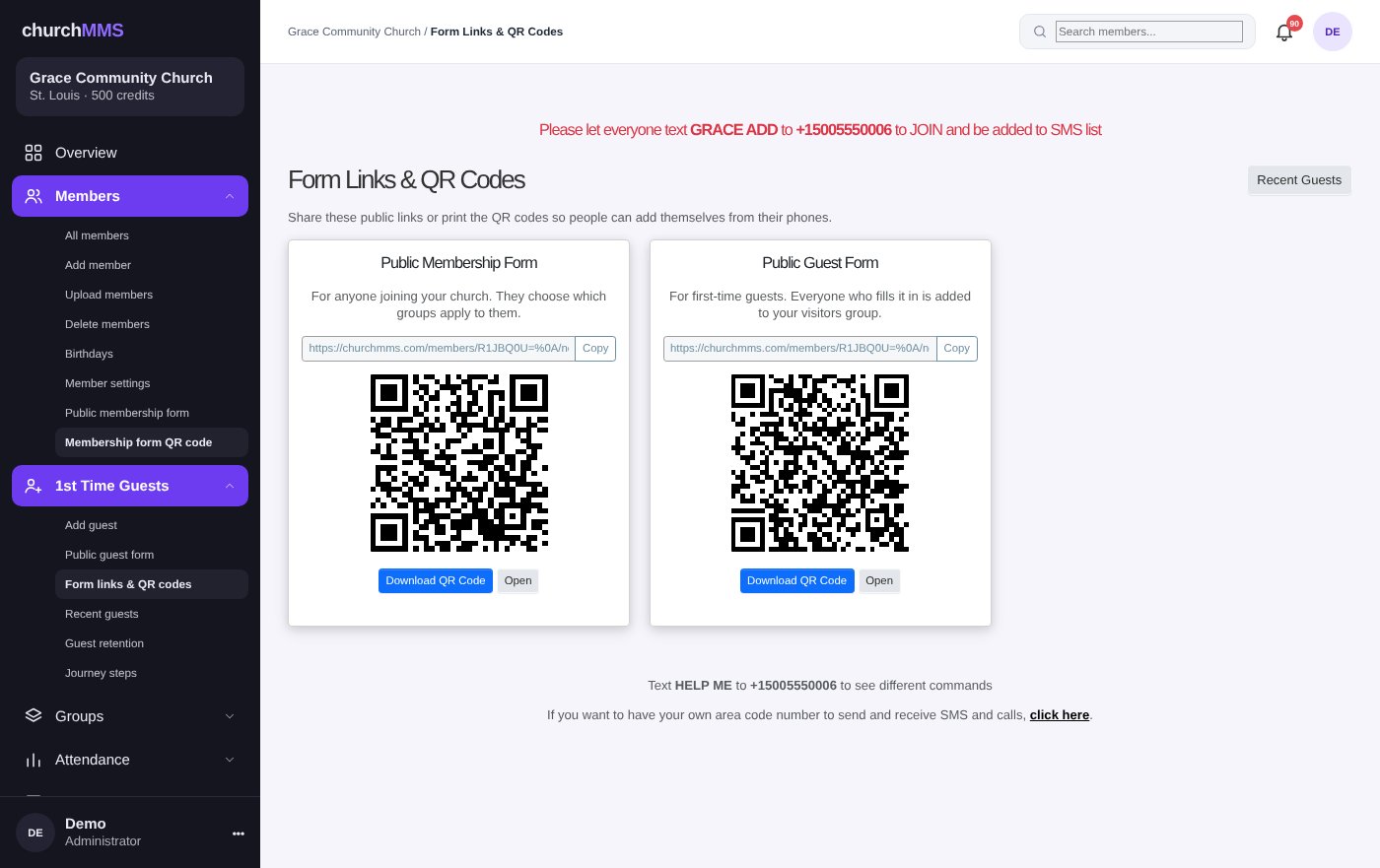
Add Guest opens the member form with the Visitors group already picked, so a greeter at the door only has to type a name and a phone number. The Public Guest Form is a link (and a QR code) you can put on a screen, a card or a bulletin. Everyone who fills it in goes straight into your Visitors group.
Add guest
Public guest form
Form links & QR codes, ready to print
Recent guests, Guest retention and Journey steps, all in one place
Where to find it: 1st Time Guests
Form Links & QR Codes: print them or put them on the screen on Sunday
Guest settings: a guest form that looks like your church
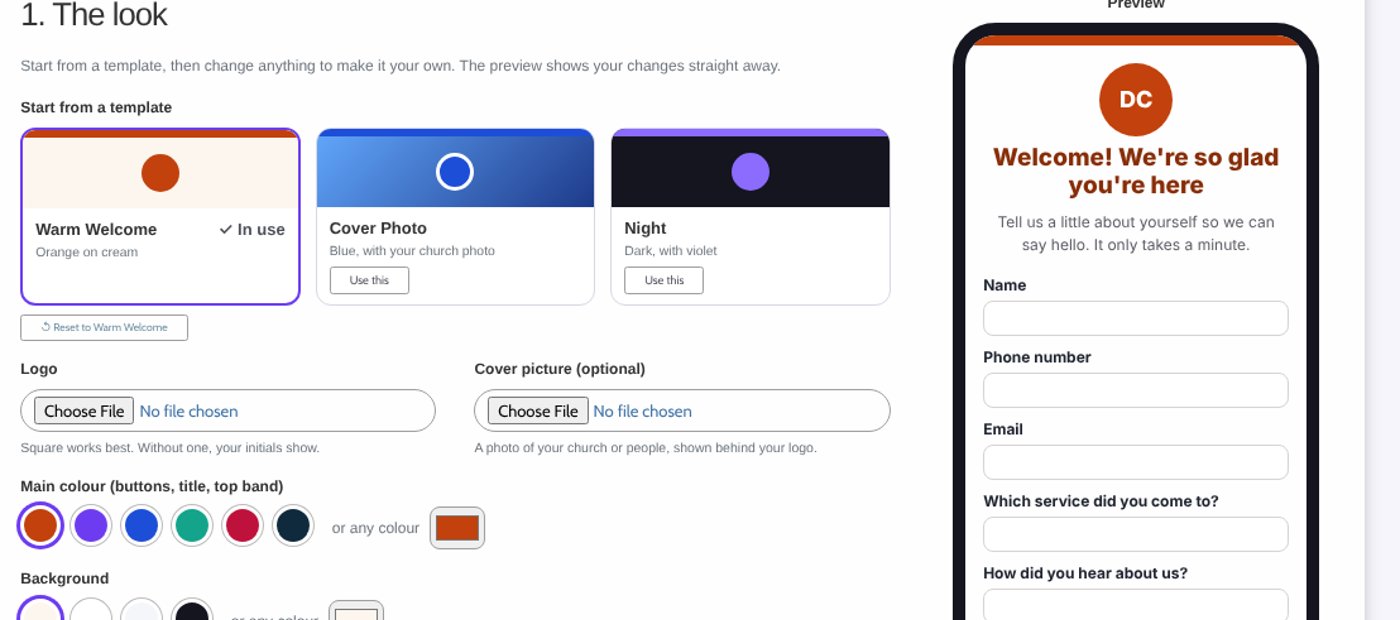
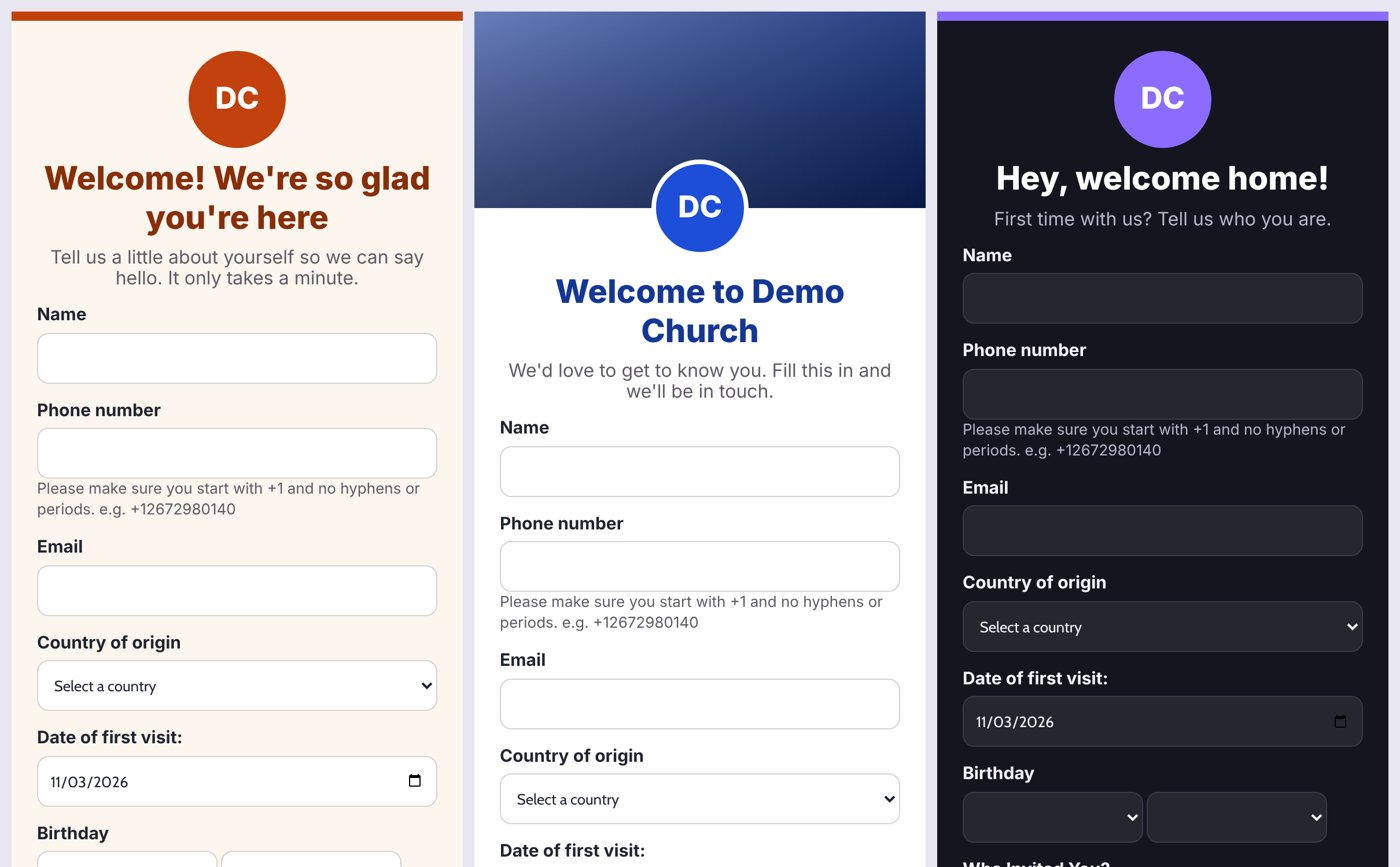
Your guest form can now have its own look. Pick one of three templates (Warm Welcome, Cover Photo or Night), then make it yours: your logo, a cover photo, your colours, your own welcome words and a thank-you message with the guest's first name.
Ask guests their own questions, like which service they came to or how they heard about you, and send prayer requests straight to your care team. Choose the group guests go in, and who hears about each guest right away: the group's leaders, the admins and even the member who invited them.
Three templates, change anything, reset any time
Guest-only questions
A shorter form just for guests
Instant alerts to leaders and the person who invited them
Where to find it: 1st Time Guests → Guest settings
Choose a template and make it your own
The same guest form in the three templates
Plan a Visit: know who's coming before they arrive
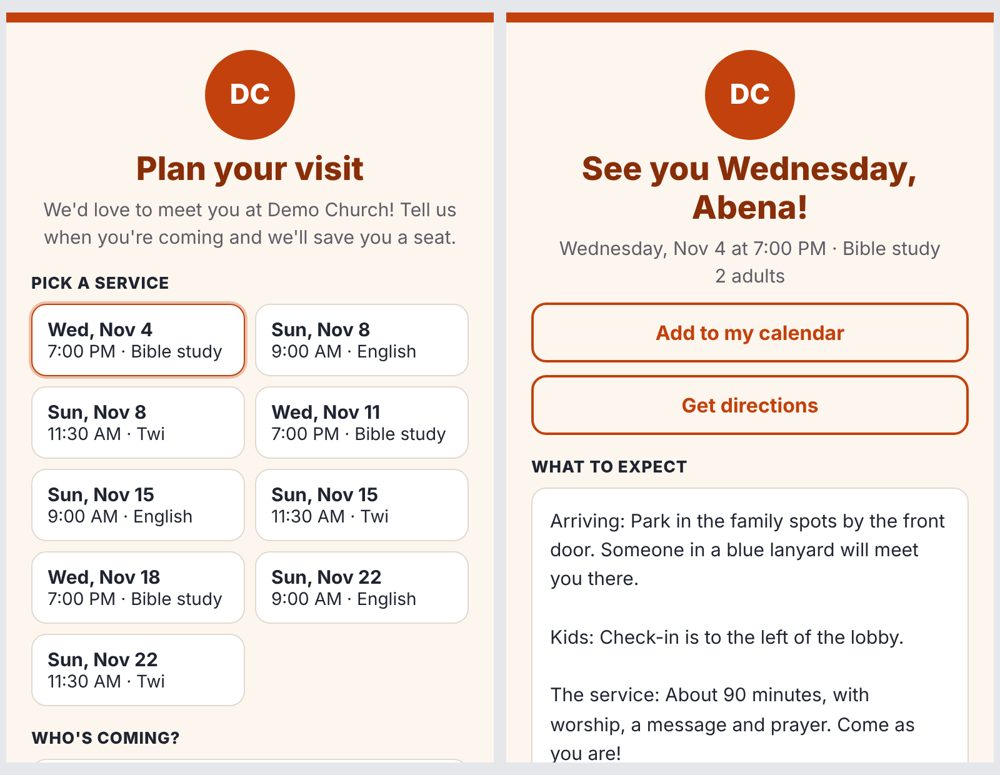
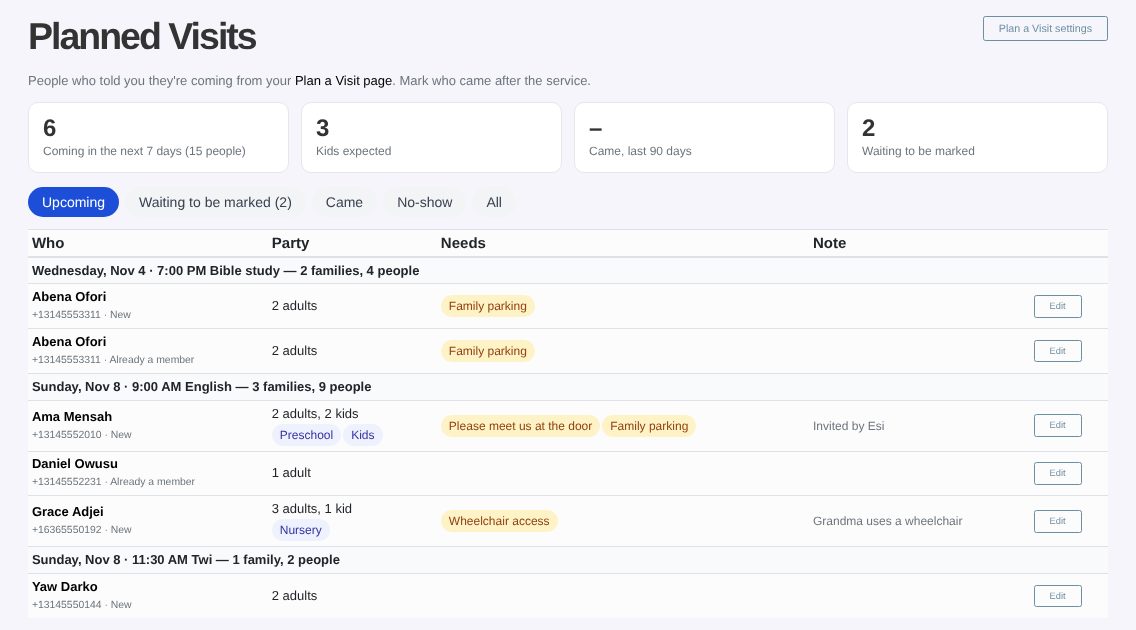
Give people a simple page to tell you they're coming: they pick a service, say how many adults and kids are coming and anything you should know, like a wheelchair or family parking. They get a thank-you text, a reminder the day before, "Add to my calendar", directions and what to expect.
Everyone who plans a visit is added to your members and a Planned Visitors group, and its leaders hear about it right away. On Sunday morning they get a summary of who's coming. After the service, mark each person Came or No-show: Came moves them to your visitors group and starts your guest follow-up.
Your own Plan a Visit page in your Guest settings look
A button for your church website, a QR code and a text keyword
Reminder and "we missed you" texts
Planned visits list with Came and No-show
Where to find it: Plan a Visit
The Plan a Visit page and what people see after
Planned visits: who's coming, by service
The guest journey: steps and shepherds
Every guest now has a journey step, such as 1st Time Guest, 2nd Time Guest, Connected, Established and Membership Class. You can rename the steps, give each one a colour, add your own, and drag them into the order that fits your church.
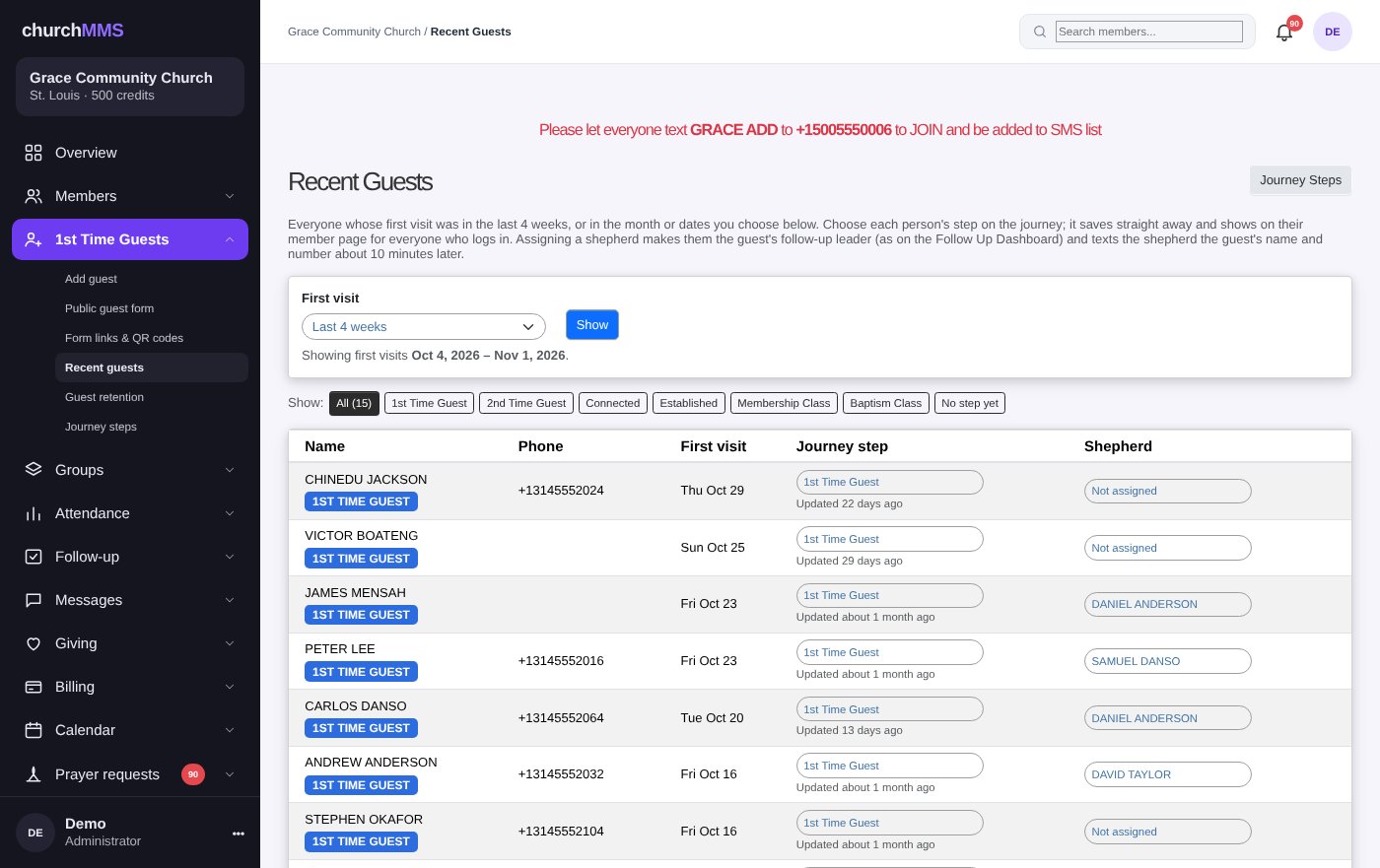
The Recent Guests page shows everyone who visited for the first time in the last 4 weeks (or a month or dates you choose). Next to each person you can change their journey step and pick a shepherd to look after them. About 10 minutes later ChurchMMS texts the shepherd to say who they have been given, so the follow-up starts the same day.
Change a guest's step from a simple dropdown
Assign a shepherd and they get a text
Filter by step or by the date of the first visit
The member page shows the step under the phone number
Where to find it: 1st Time Guests → Recent guests and Journey steps
Recent Guests: set each person's step and shepherd
Guest retention: are your guests coming back?
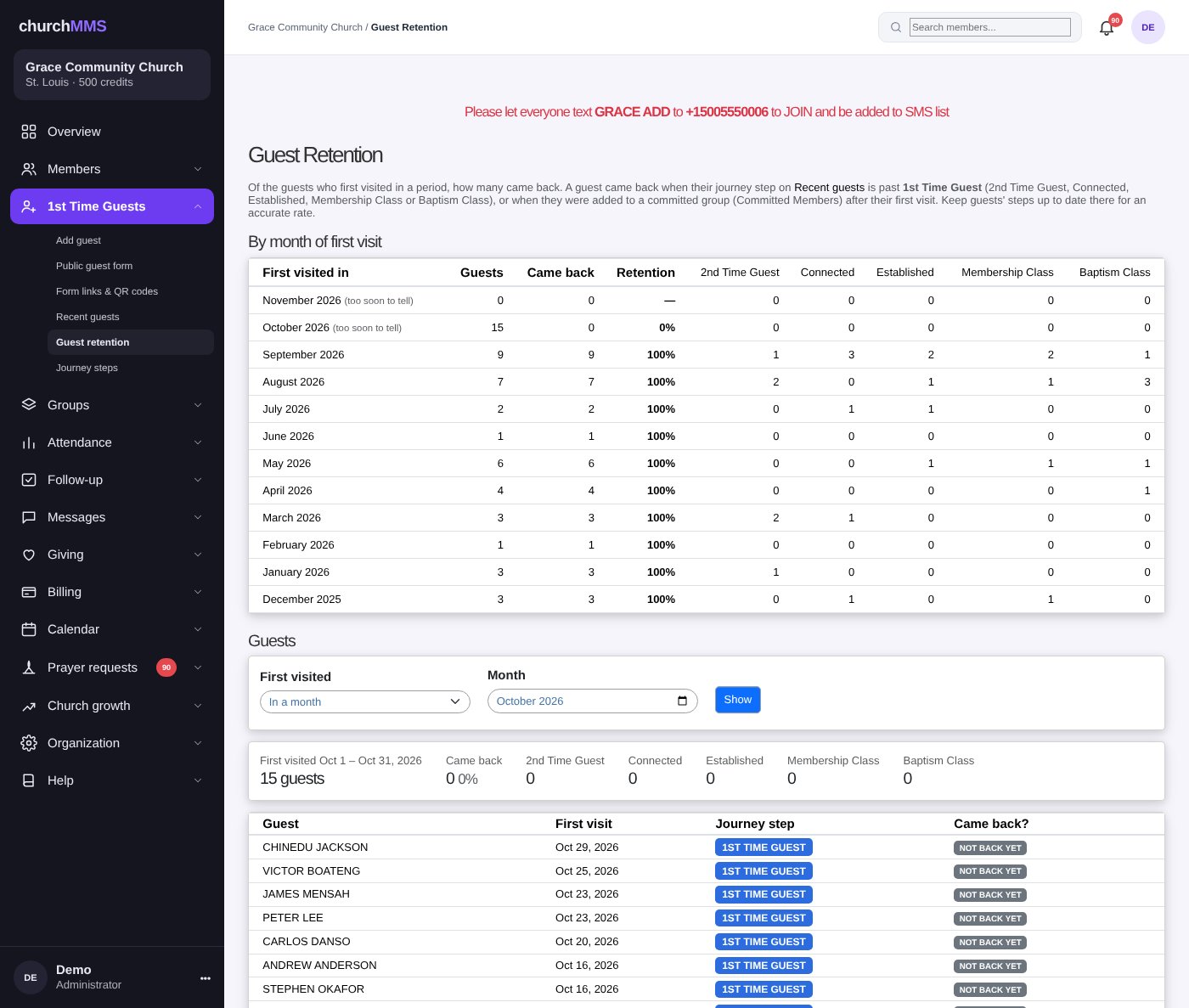
This new report answers a simple question: of the people who visited for the first time, how many came back? A guest counts as having come back when they move past the first journey step, or join a committed group on a later day.
You see the last 12 months, month by month, with the percentage that returned. Click a month to see the names. There is also a Guest Retention card on the Overview page so you see the number every time you sign in.
Where to find it: 1st Time Guests → Guest retention
Guest retention, month by month
Alerts so no guest is missed
ChurchMMS now taps you on the shoulder. When someone fills in your public form you get a New Guest alert. If a guest still has no shepherd after 48 hours, you get a reminder. If a committed member misses 3 Sundays in a row, you hear about it on Sunday evening.
Each alert includes the person's contact details and a link that takes you straight to the right page. You can turn any alert off on Reminder Settings.
Where to find it: Messages → Reminder settings
5 new features
Members
Your member list is the heart of ChurchMMS. You can now shape the member form to fit your church, see more about each person at a glance, and keep phone numbers clean without doing it by hand.
Member settings: make the form your own
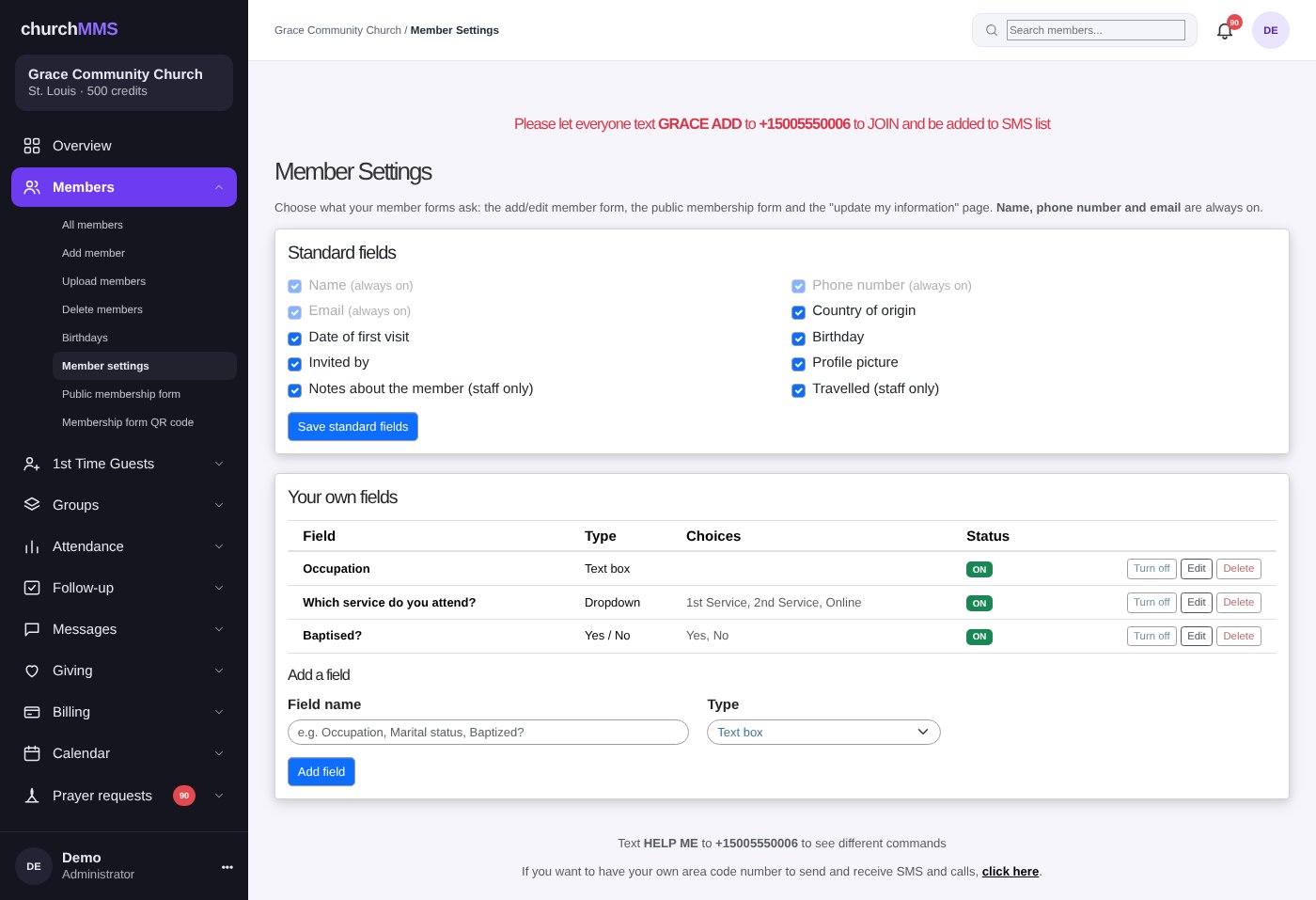
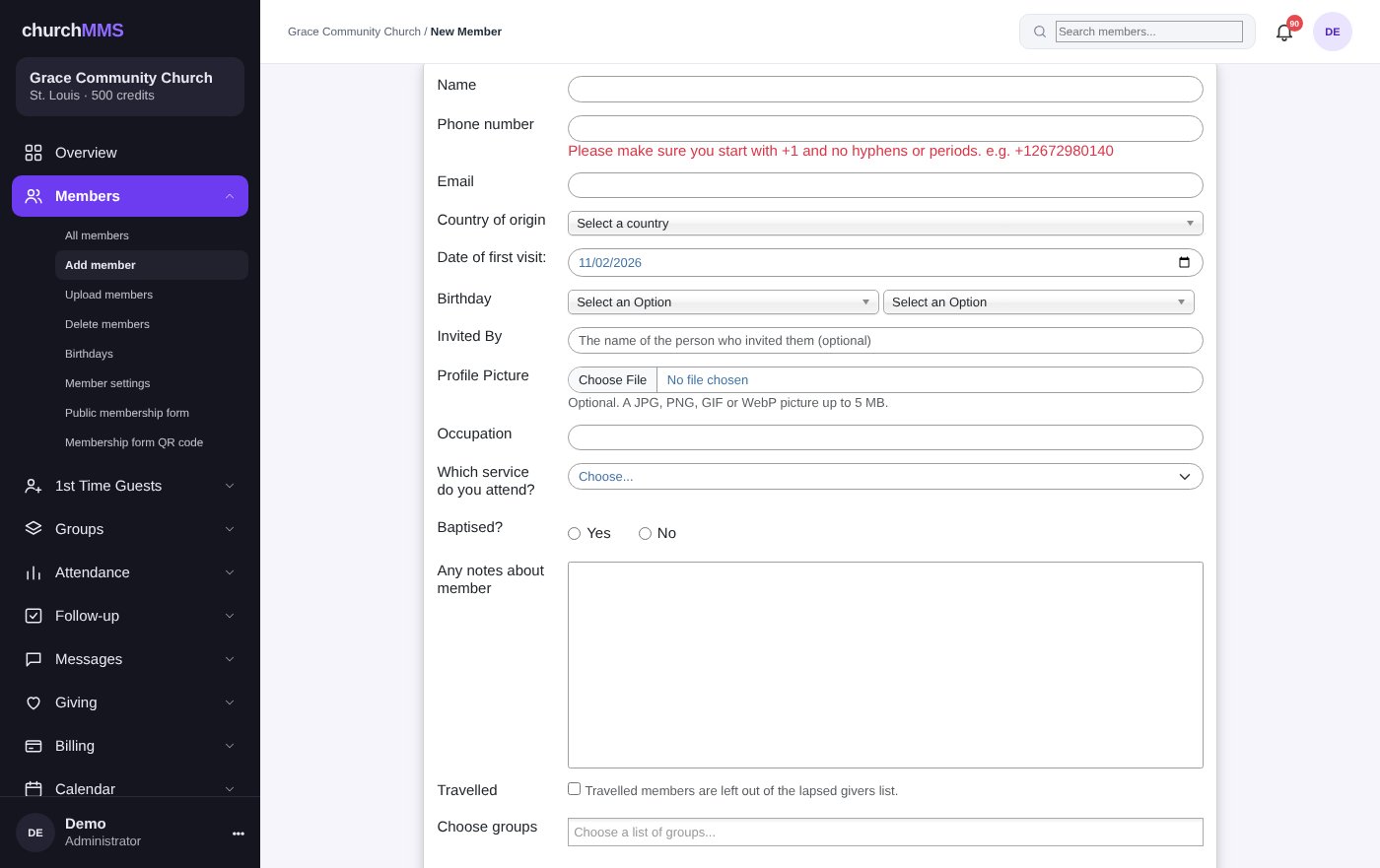
Church owners can now choose which questions appear on every member form. Don't ask for country of origin? Turn it off. Don't need staff notes? Turn them off. Name, phone number and email always stay on.
Best of all, you can add your own questions. Add a text box (for example "Occupation"), a dropdown ("Which service do you attend?") or a Yes/No question ("Baptised?"). Your questions appear on the staff form, the public membership form, the member's own "update my information" page, the member page, and as their own columns in the Excel downloads. Turning a question off later keeps the answers already given.
Hide standard fields you don't use
Add text, dropdown or Yes/No questions
Reorder, edit or delete your questions
Answers show up in your Excel downloads
Where to find it: Members → Member settings
Member settings: standard fields and your own fields
Your own questions appear on the member form
Profile pictures and "Invited by"
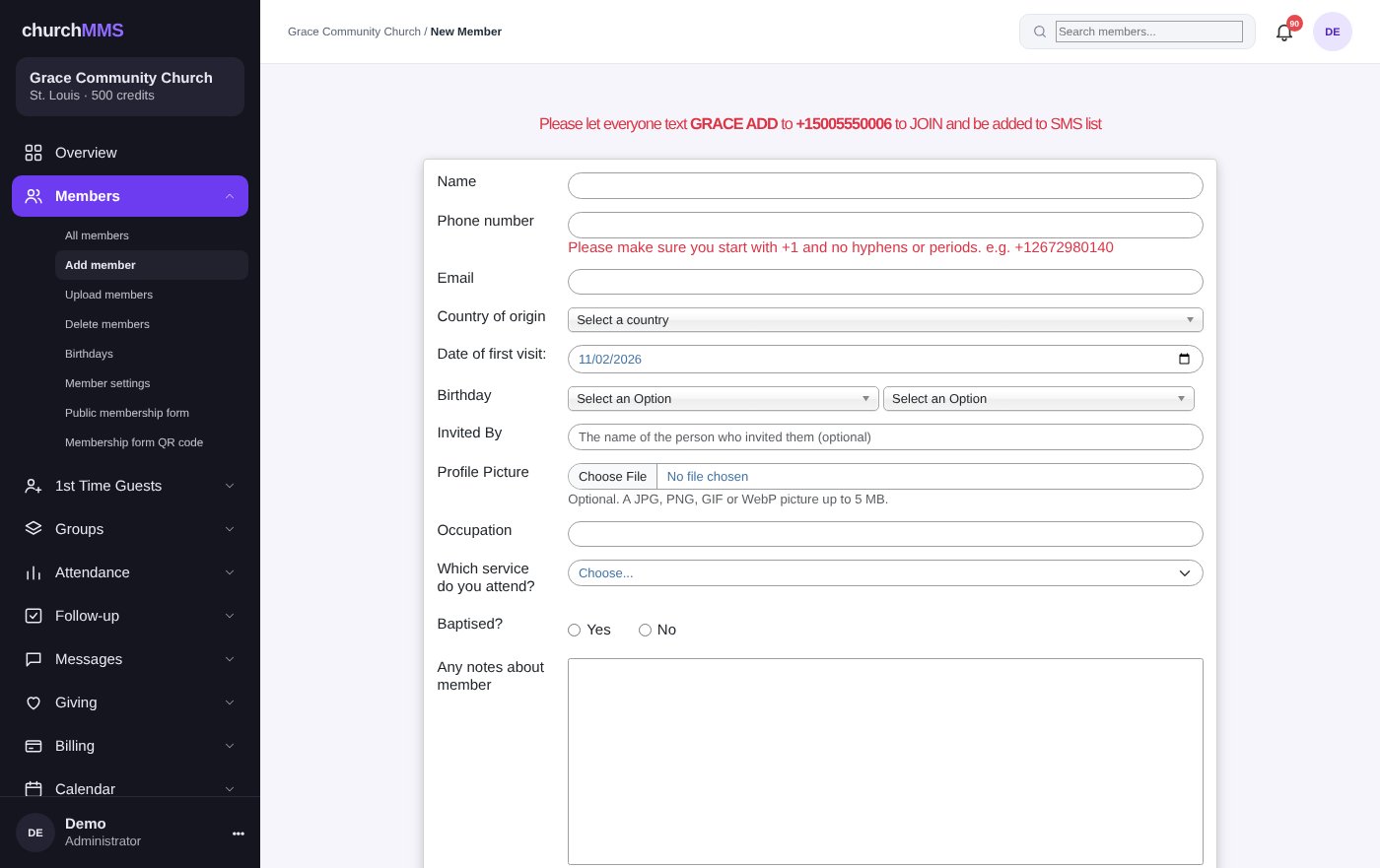
Members can now have a profile picture. Staff can add one on the member form, and members can add their own on the public sign-up form or the "update my information" page. It helps new staff and shepherds put a face to a name.
There is also an Invited By question, so you can see who brought whom and thank the people who are inviting their friends.
Where to find it: Members → Add member, or the public membership form
Profile picture and Invited By on the member form
A cleaner member page
Each member's page has been redesigned. At the top you see their photo, name, journey step, phone, email and the main buttons. Below that, colour-coded cards show personal details, church details (with their groups as little tags), your own questions, comments and links.
Birthdays are better too. The birthday list is now in date order from last week to 3 weeks ahead, it works across the new year, and Past, Today and Upcoming are always right.
Where to find it: Members → All members → click a name
Weekly phone number check
Texts only reach people whose numbers are complete, with the country code (+1 for the USA and Canada, +233 for Ghana, +44 for the UK, and so on). Every Monday morning ChurchMMS fixes the numbers it can fix by itself, then emails you a short list of the ones it can't, with an Edit link next to each person.
If a number is still not fixed after 4 weeks, the number is taken off. People who have an email address stay on your member list; people with no email get a final warning and are removed a week later. You can switch this check off on Reminder Settings.
Where to find it: Your email inbox every Monday; switch it off in Messages → Reminder settings
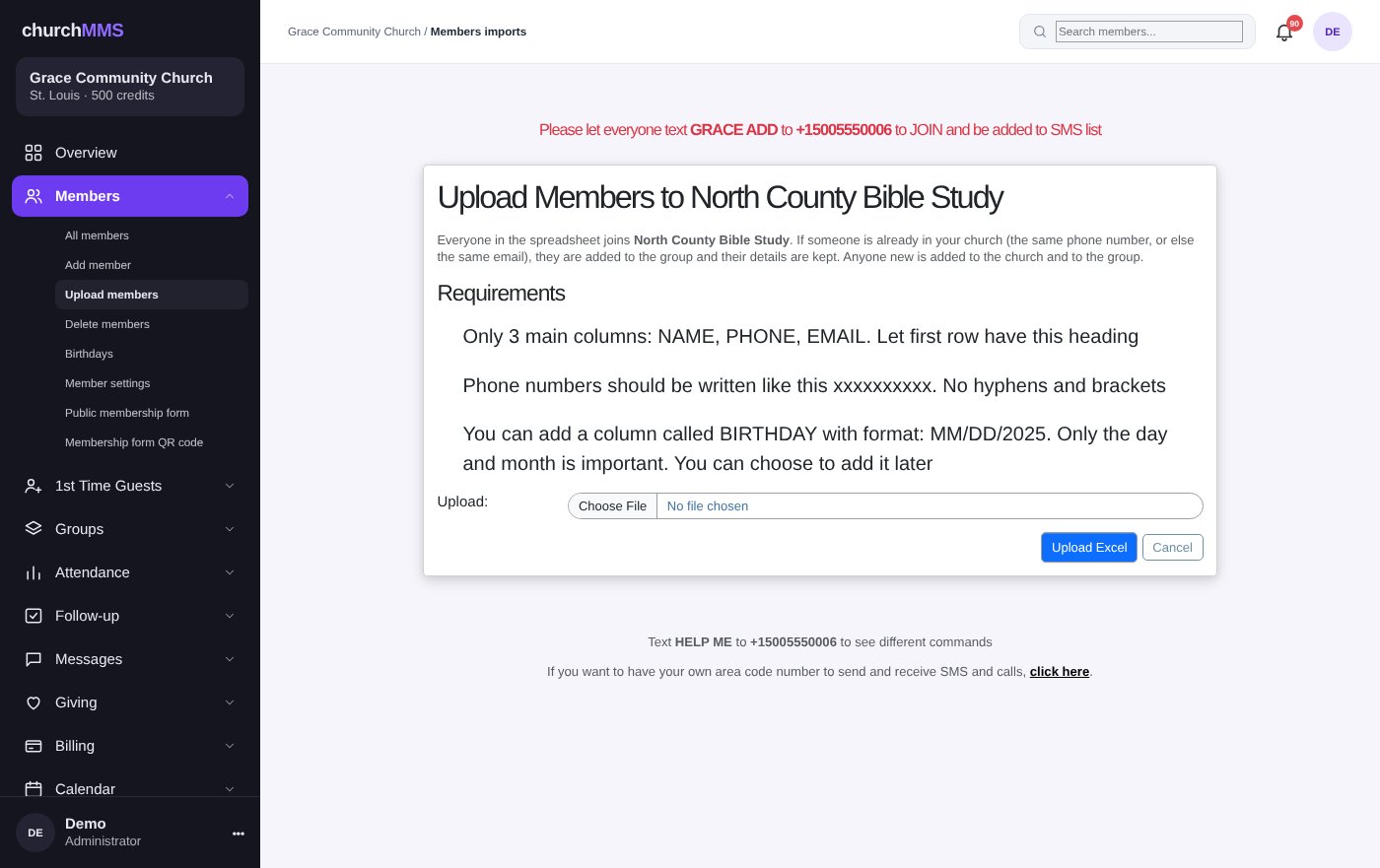
Uploading members from Excel no longer stops at a bad row
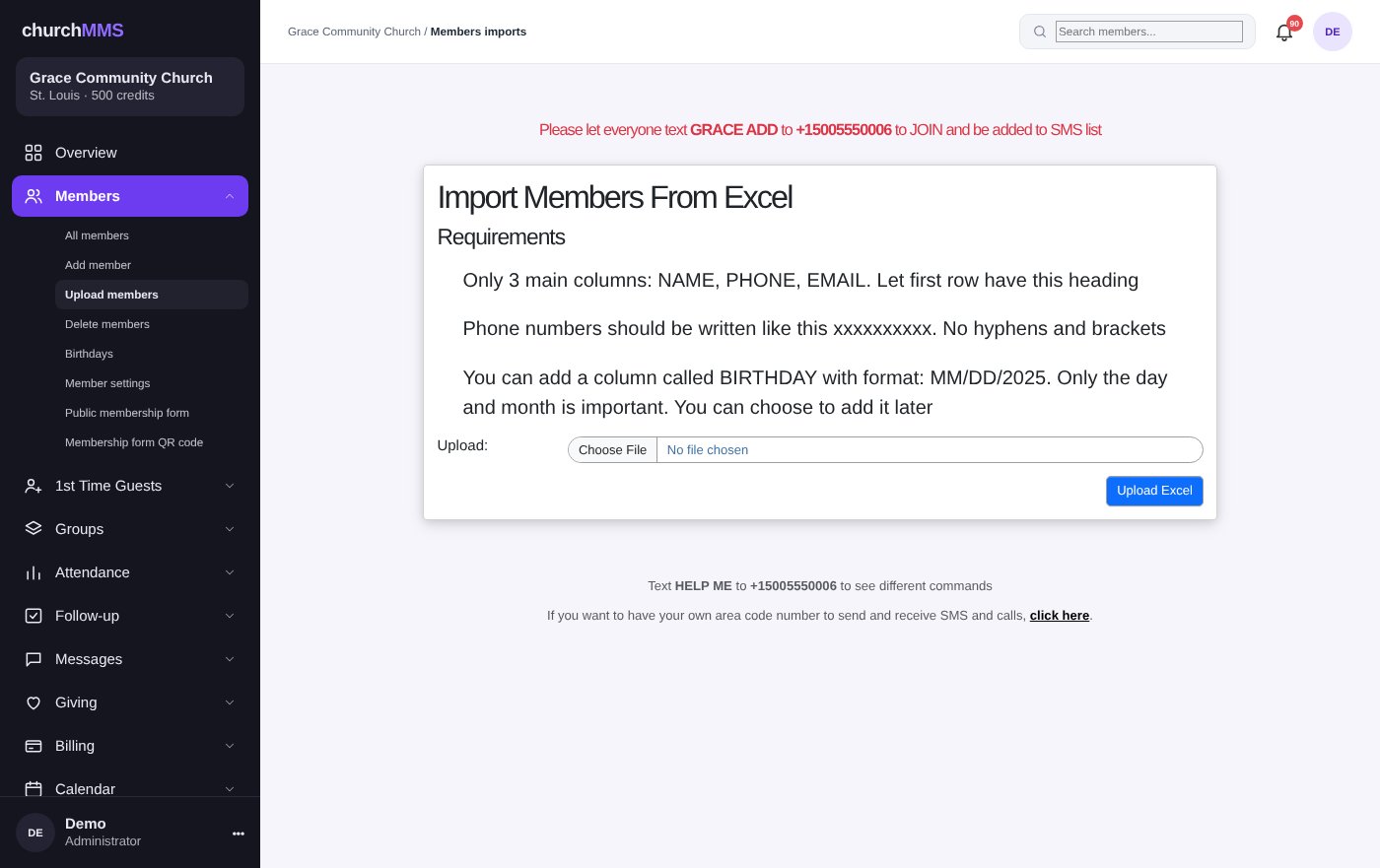
Before, a single bad row in your spreadsheet could stop the whole upload. Now every good row is added, and you get a clear list of the rows that were skipped, with the row number, the name and the reason (for example "no phone or email"). Fix those rows and upload the same file again; people already added are updated, not doubled.
Member and group downloads also have a new Groups sheet, with a column for each group and a "Yes" for every member in it.
Where to find it: Members → Upload members
Upload members from Excel
4 new features
Groups and Small Groups
Groups are how a church becomes a family. These changes help you run them with less effort and see which ones are growing.
More than one leader per group
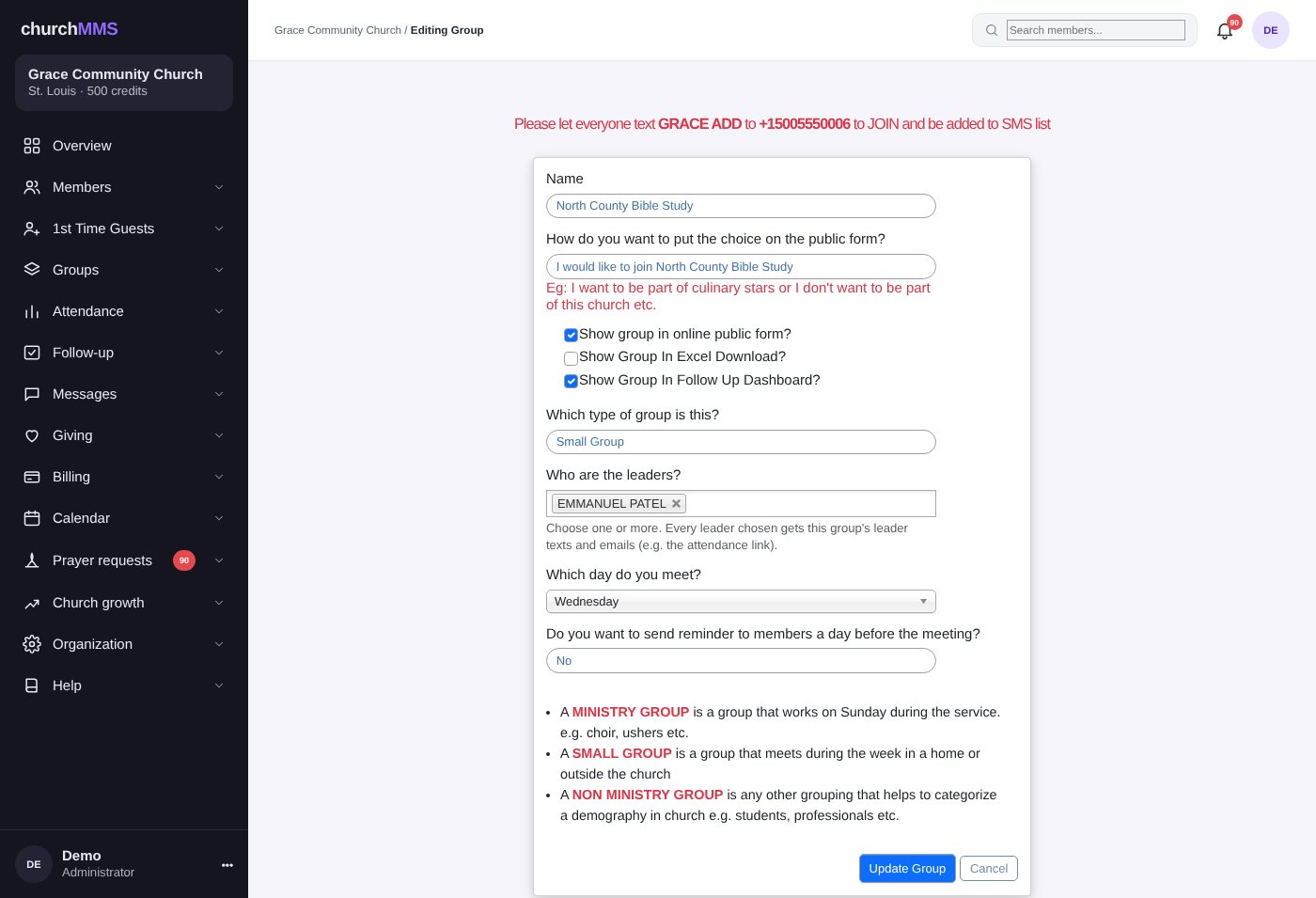
Many small groups are led by a couple or a team. A group can now have as many leaders as you like. Pick them from a searchable list on the group form.
Every leader gets the small group attendance link, sees the group on their attendance page and dashboards, and is named in the meeting reminder that members receive (for example "Ama and Kofi are looking forward to seeing you").
Where to find it: Groups → Add group, or Edit on any group
Choose one or more leaders
Upload members straight into a group
Every group now has an Upload Members button. Upload a spreadsheet of names and phone numbers and they are all put into that group. People who are already in your church are matched by phone (or email) and simply added to the group. New people are added to the church and the group together.
Anyone added this way also starts the group's follow-up messages, just as if you had added them by hand.
Where to find it: Groups → Manage groups → Upload Members
Upload a list into one group
Group growth report
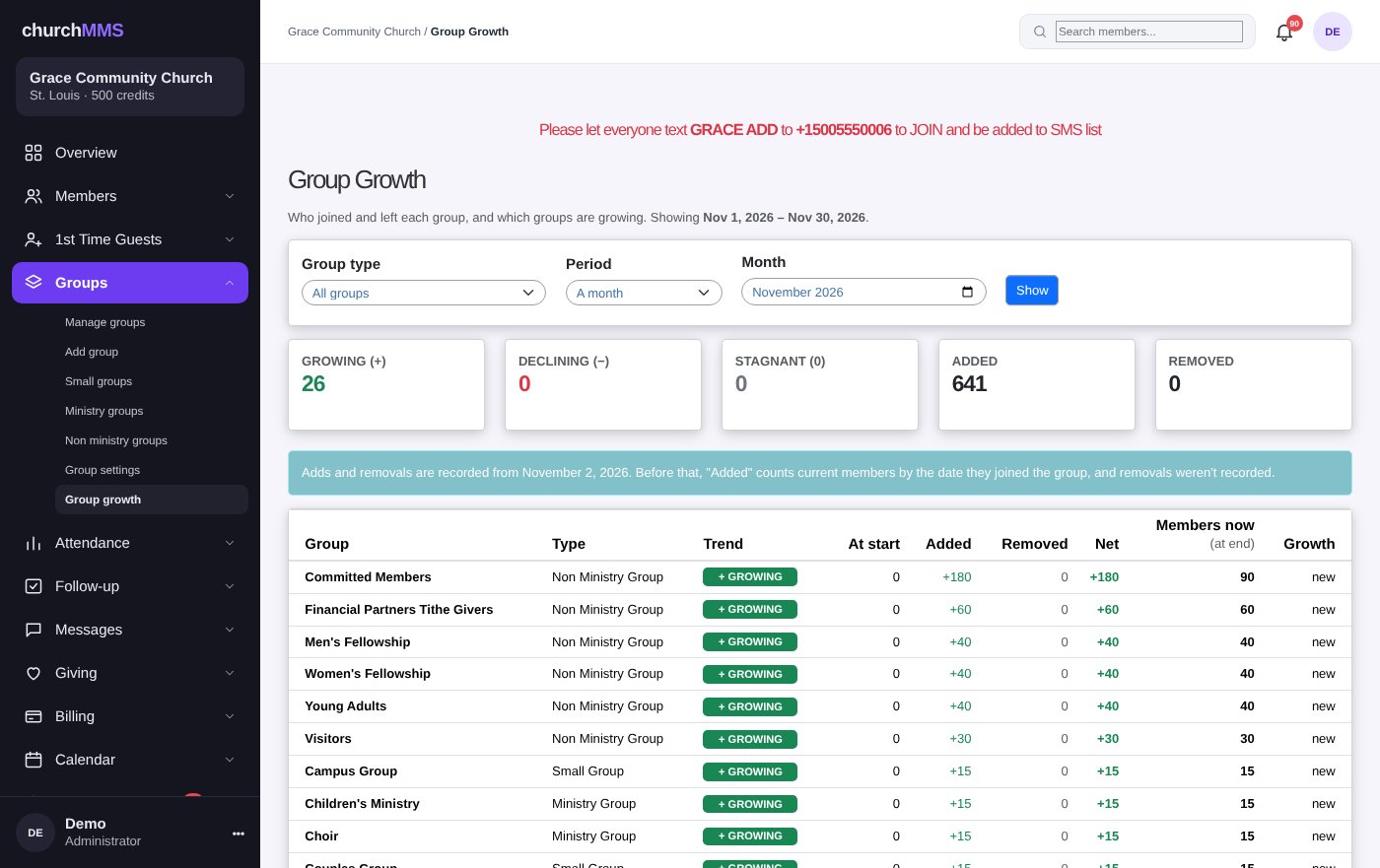
ChurchMMS now remembers every time someone joins or leaves a group. The Group Growth report shows, for each group, how many members it had at the start and end of a month (or any dates you pick), how many joined, how many left, and the growth percentage.
Each group gets a simple label: Growing, Declining or Stagnant. Click a group to see exactly who joined and who left, or download it all as a spreadsheet.
Where to find it: Groups → Group growth
Which groups are growing?
A tidier group page
The group page now has the buttons you use most (Add Members, Edit and a Next Steps menu) on the left, with Back on its own on the right. The member list is tucked behind a Show Members button so long groups don't fill the screen. The groups list now has a Leaders column.
Where to find it: Groups → Manage groups → click a group
4 new features
Attendance and Check-In
Counting people matters because people matter. Taking attendance is now quicker, and people can even check themselves in from their phone.
Self check-in with a code and QR code
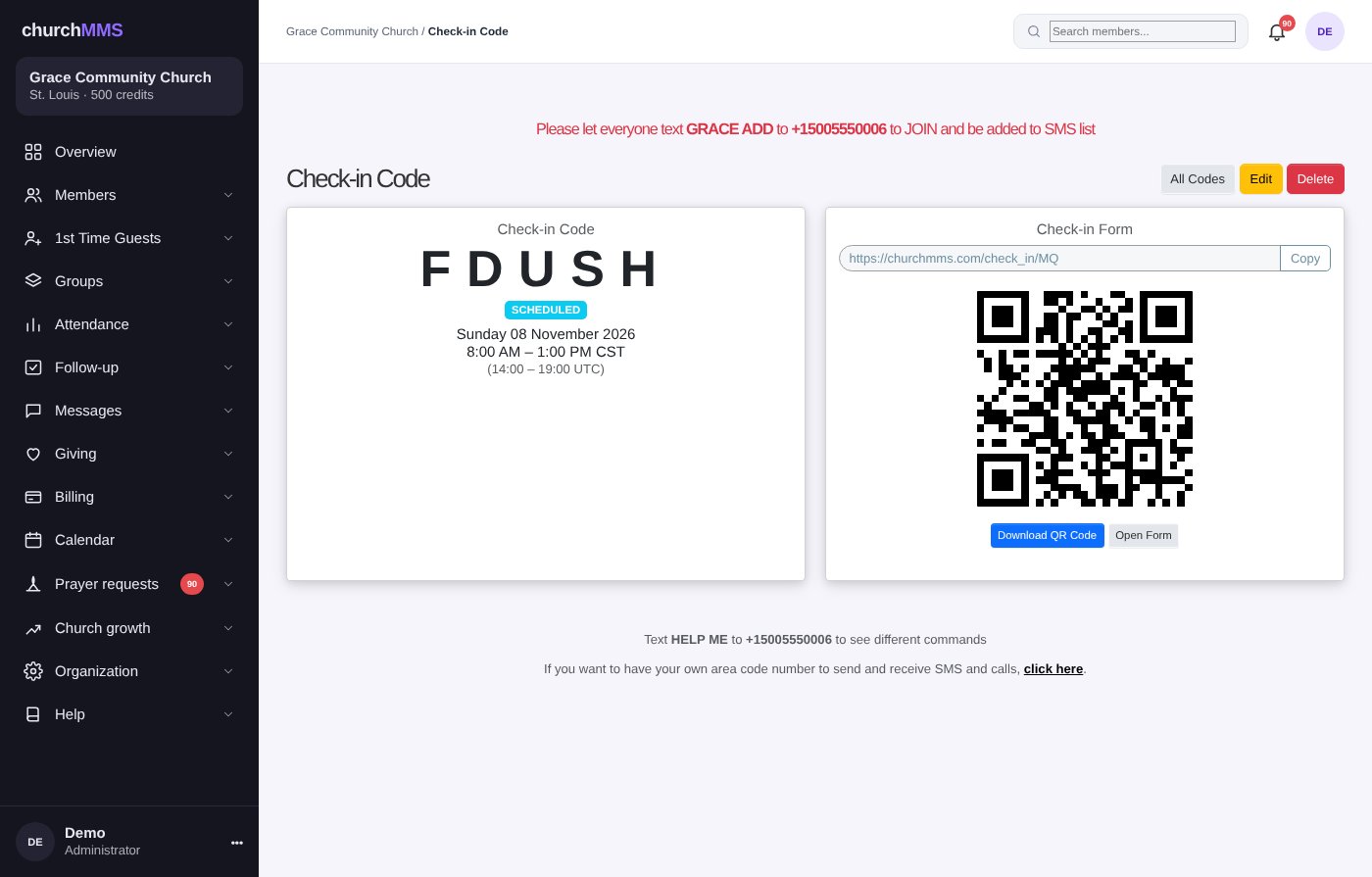
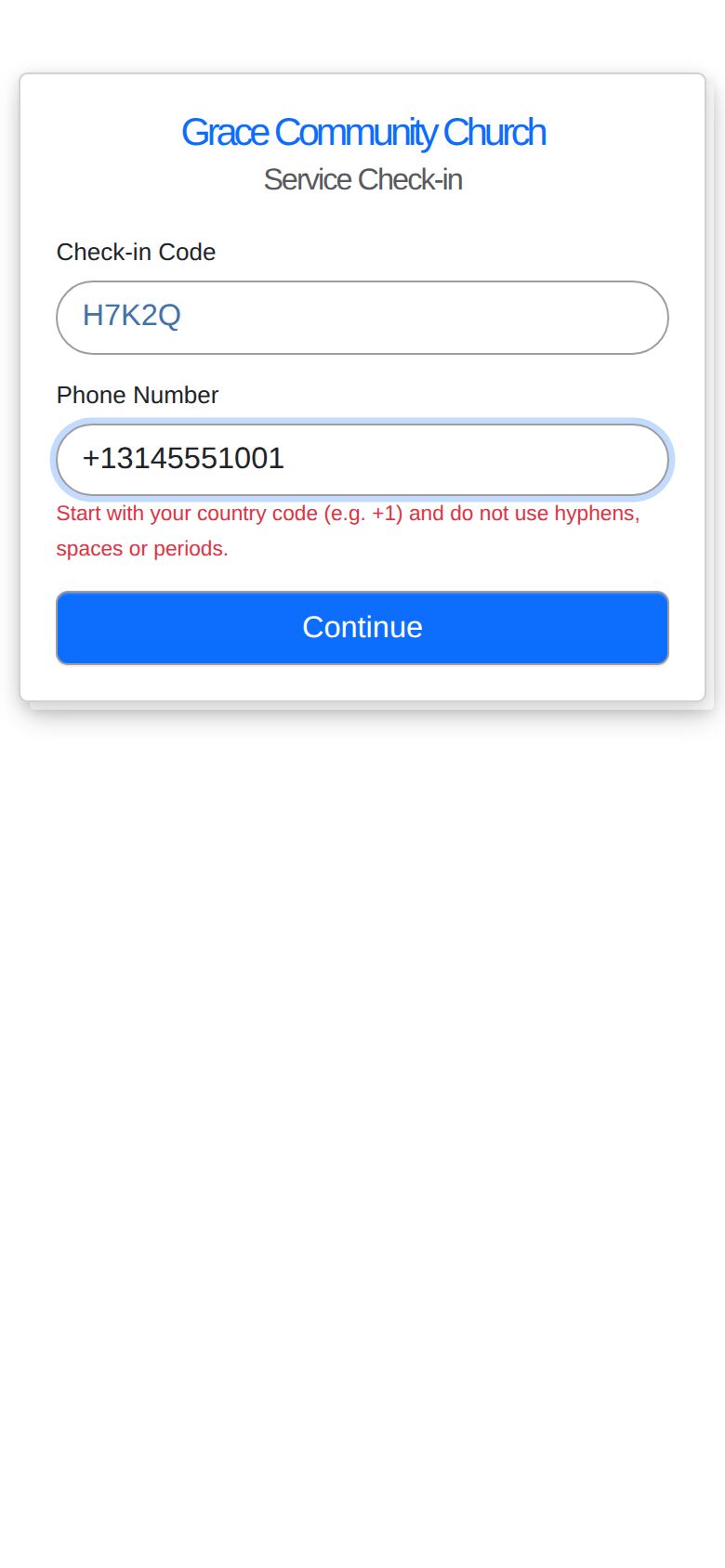
Create a short check-in code (for example H7K2Q) for a service, and choose the times it works. Put the QR code on the screen or at the door. People scan it, type the code and their phone number, confirm their name and tap Check In. That's it.
Members are marked present automatically. Anyone ChurchMMS doesn't know is shown the membership form first, so check-in also becomes a way to collect new guests' details.
Codes only work during the times you set
Works by phone number, with email as a backup
Guests are counted and their names saved
Where to find it: Attendance → Check-in codes
A check-in code with its QR codeWhat people see on their phone
Adults, children and a total
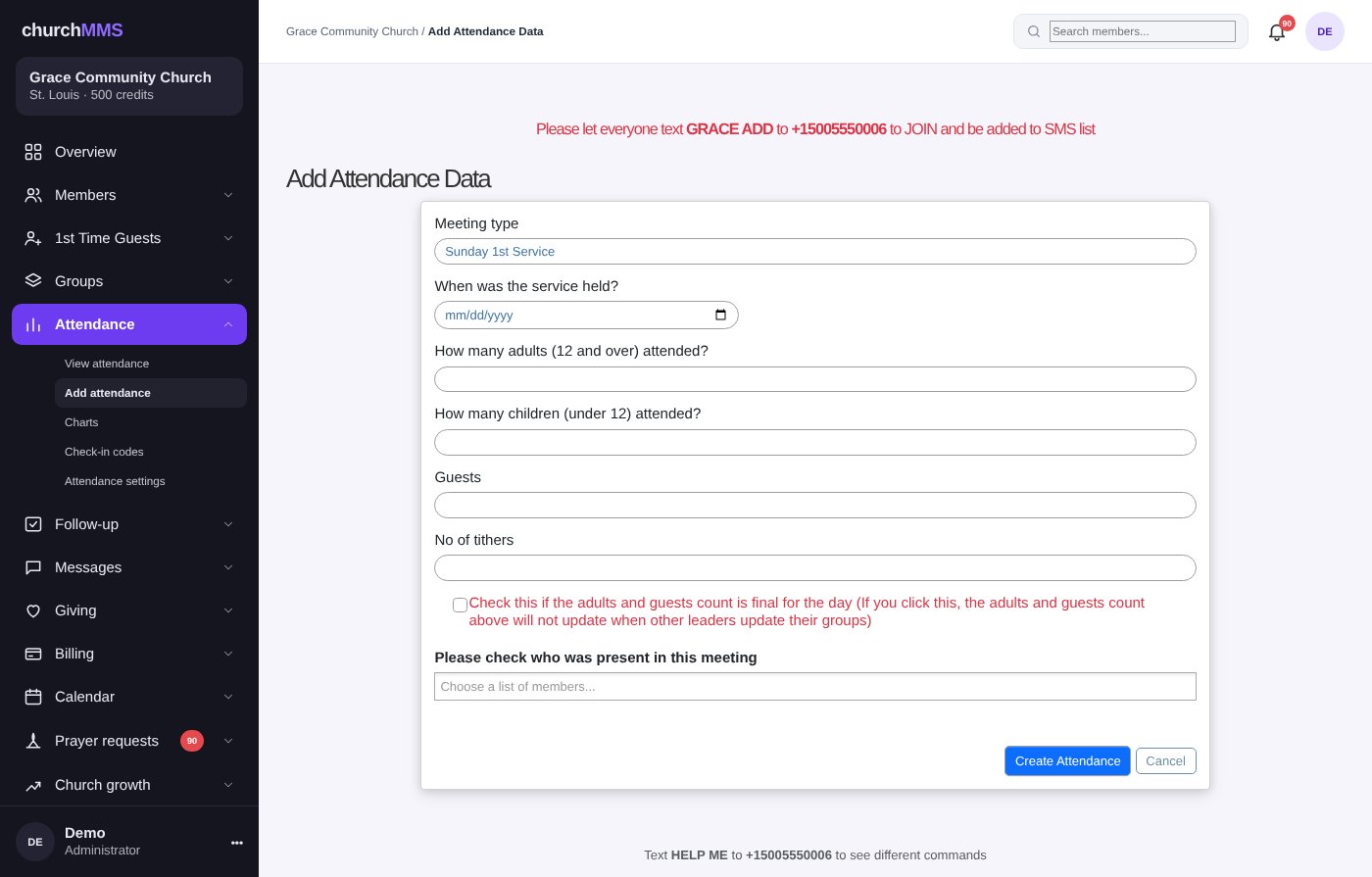
Attendance now records adults (12 and over) and children (under 12) separately, and works out the total for you. The total shows in the lists, on each record and as an option on the charts.
Where to find it: Attendance → Add attendance
Add attendance with adults and children
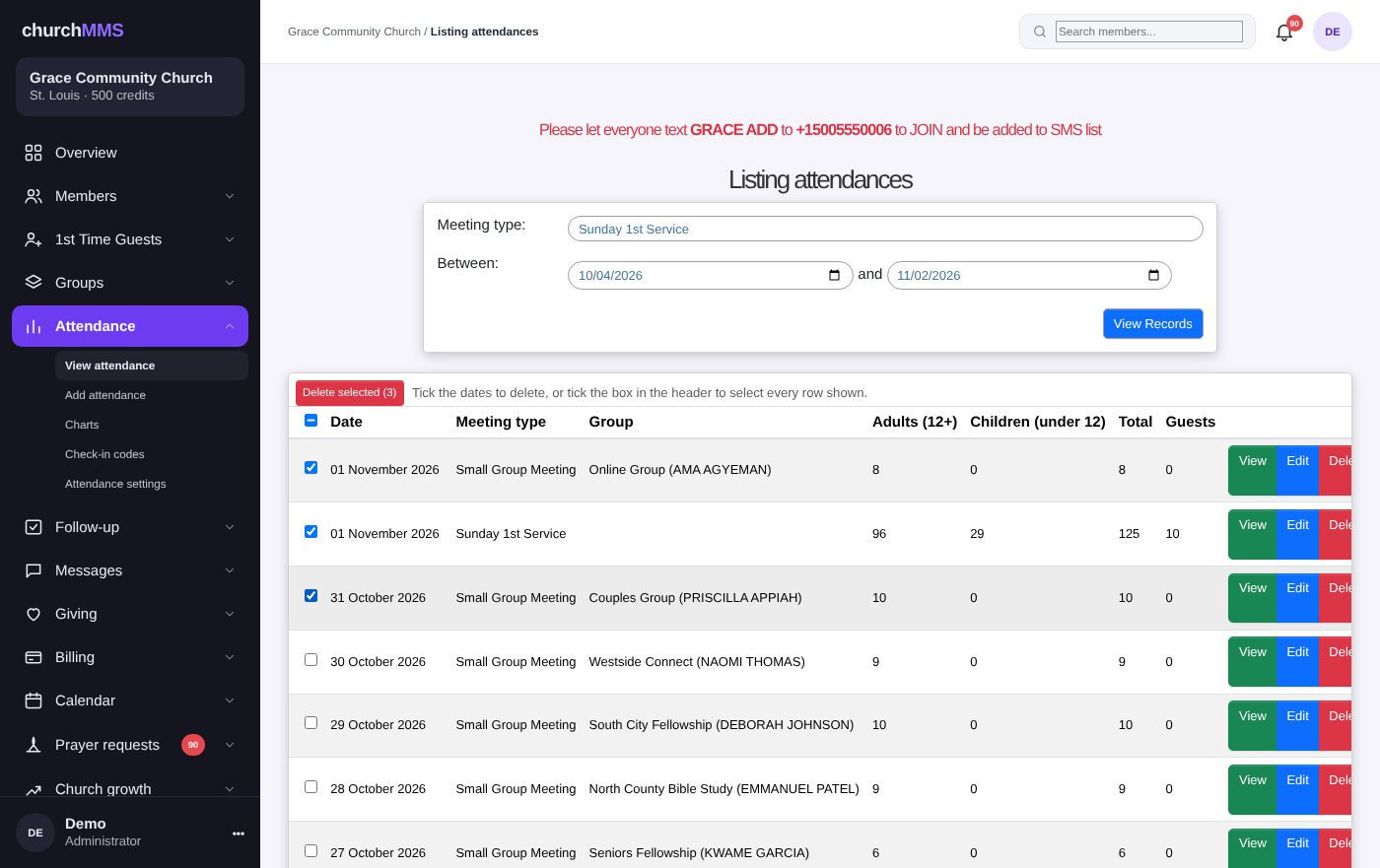
Delete several attendance records at once
Entered something twice by mistake? On the attendance list, tick the records you want to remove (or tick the box at the top to select them all) and press Delete selected. ChurchMMS asks you to confirm first.
Where to find it: Attendance → View attendance
Tick records and delete them together
Better follow-up reports
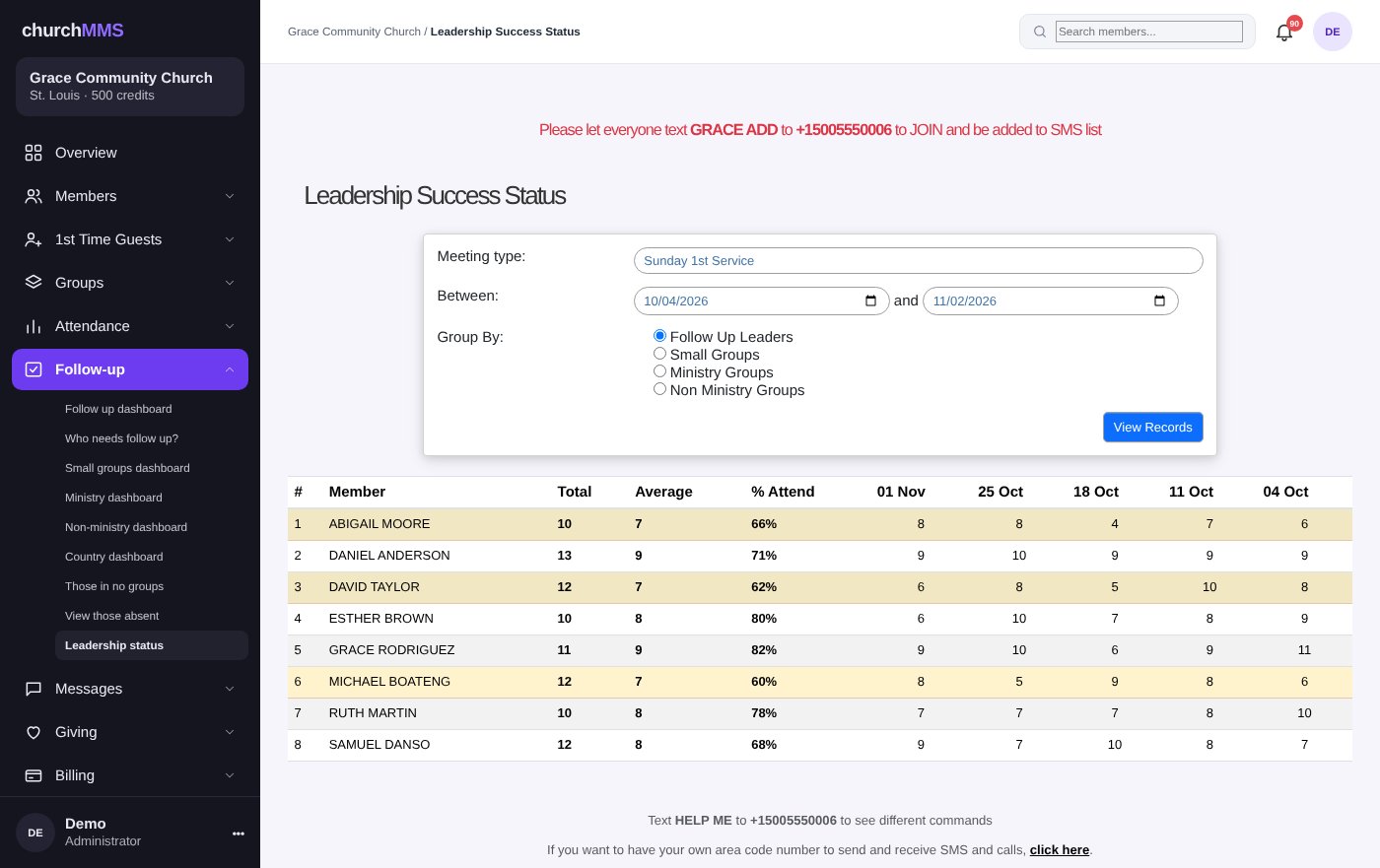
"Who needs follow up?" and Leadership Status now keep the meeting type and small group you picked, show the small groups list when you choose Small Group Meeting, and only show people from the group you chose. Leadership Status has a new % Attend column so you can see each leader's attendance rate at a glance.
When you go into a record from a report and press Save, Cancel or Back, you now return to the same report with the same filters, instead of starting over.
Where to find it: Follow-up → Who needs follow up? and Leadership status
Leadership status with the new % Attend column
6 new features
Texts, Calls and Emails
Staying in touch is what ChurchMMS was built for. You can now send video and audio, send to any list of people, have your own church phone number, and be sure people who say STOP are respected.
Text-a-Keyword
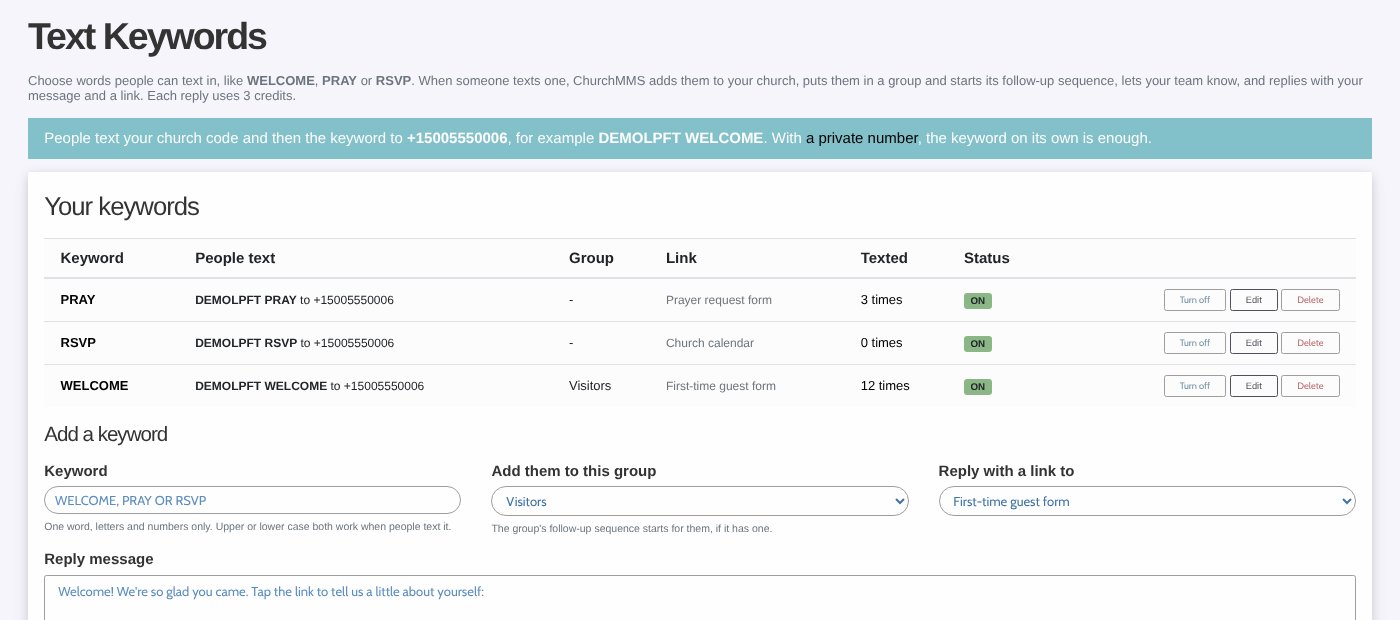
Choose your own words people can text in, like WELCOME, PRAY, SERVE or RSVP. Put one on the screen on Sunday ("Text WELCOME to ...") and every guest who texts it is added to your church, put in the group you chose, and started on that group's follow-up texts and emails. They get your reply straight away, with a link to the guest form, the prayer form, your calendar or any web page.
The group's leaders get a text and an email each time so they can welcome the person, and the keyword's page shows everyone who texted it. Any group can have its own keyword too (Groups → Edit → Text keyword): text GRACE YOUTH and you are in the Youth group. Someone new is added to your members and gets a link to fill in their details. With your own church number the word on its own is enough; on the shared ChurchMMS number people put your church code first.
Add people to a group and start its sequence
Reply with your message and a link
Alert the group's leaders
See who texted each keyword
Where to find it: Messages → Text keywords
Set up keywords and see how people text them
Send video and audio with your texts
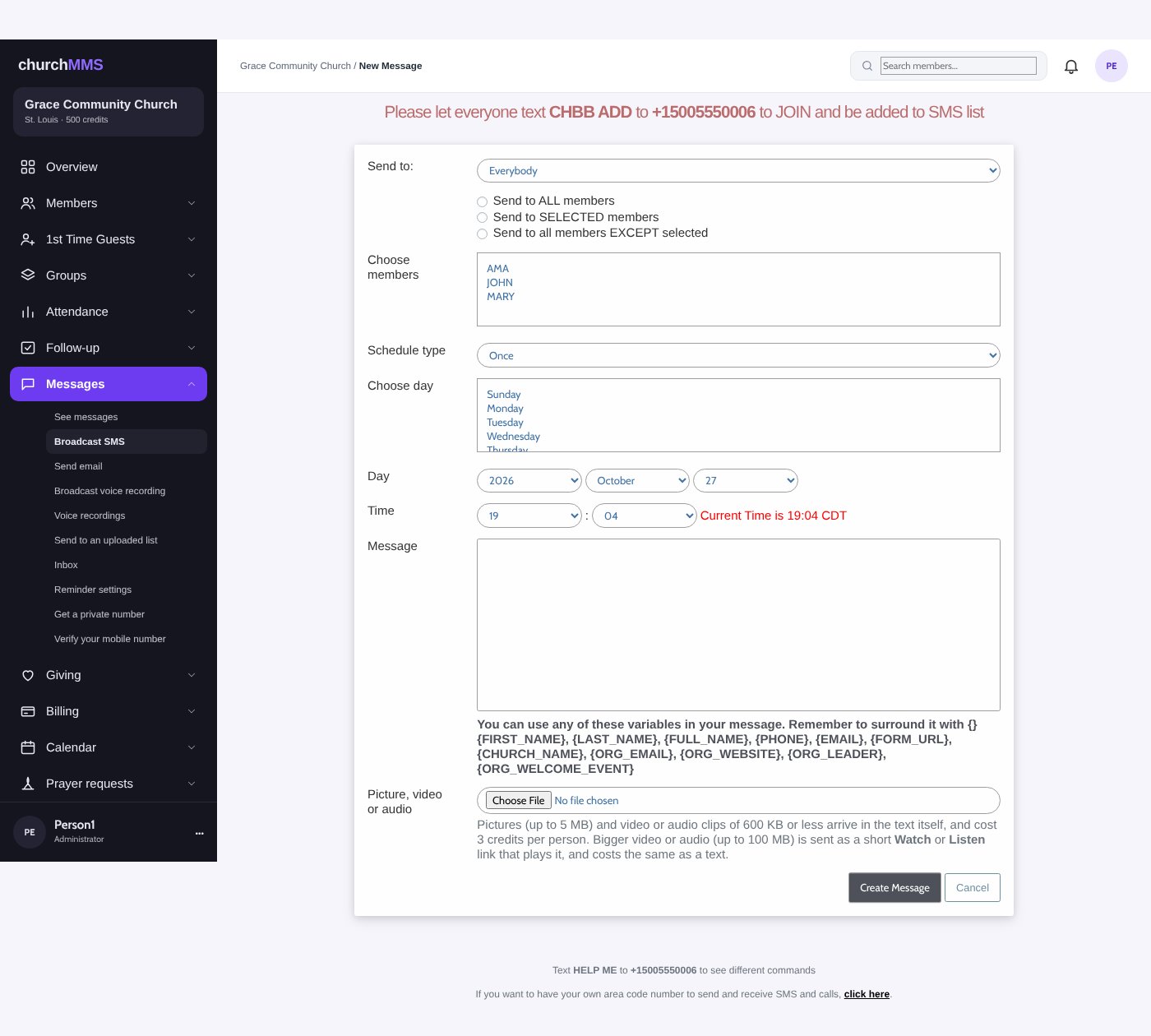
On Broadcast SMS, the old picture field is now "Picture, video or audio". Send a short clip of Sunday's sermon, a birthday song from the choir, or a voice note from the pastor.
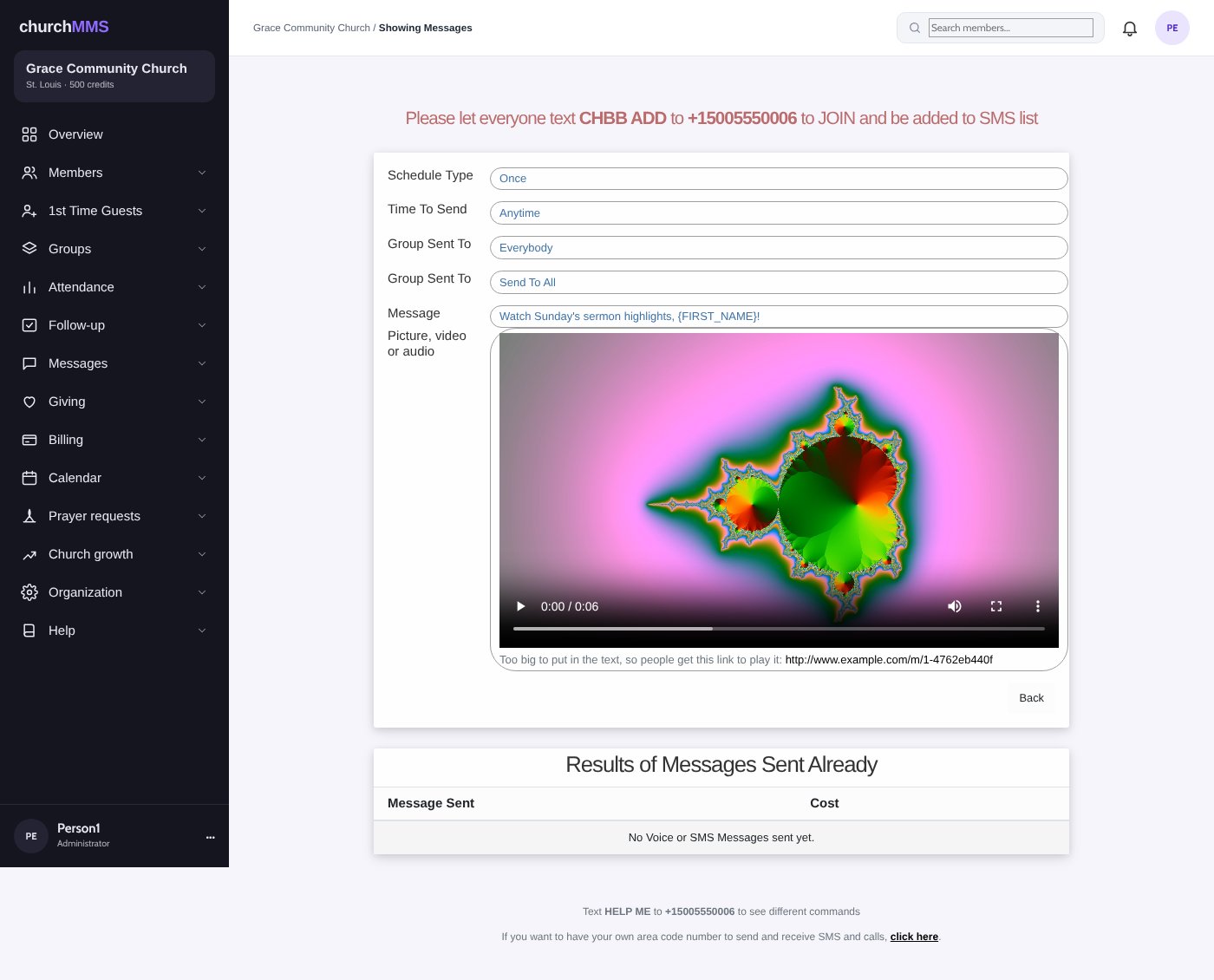
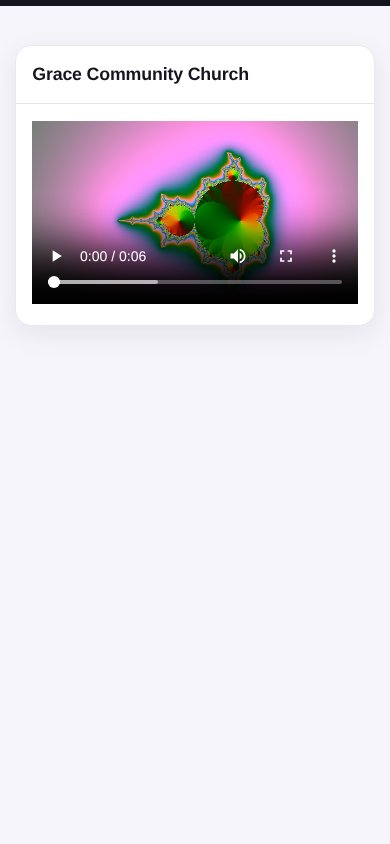
Pictures and small clips (600 KB or less) arrive inside the text itself. Bigger video or audio files (up to 100 MB) are sent as a normal text with a short Watch or Listen link. Tapping the link plays the clip on the phone; nobody needs an app or a login. The links are private and can't be guessed.
Pictures up to 5 MB
Video and audio up to 100 MB
Picture messages cost 3 credits per person; Watch and Listen links cost the same as a normal text
Where to find it: Messages → Broadcast SMS
Choose a picture, video or audio file
The message page plays the clip and shows the link people getWhat people see when they tap Watch
Send to an uploaded list
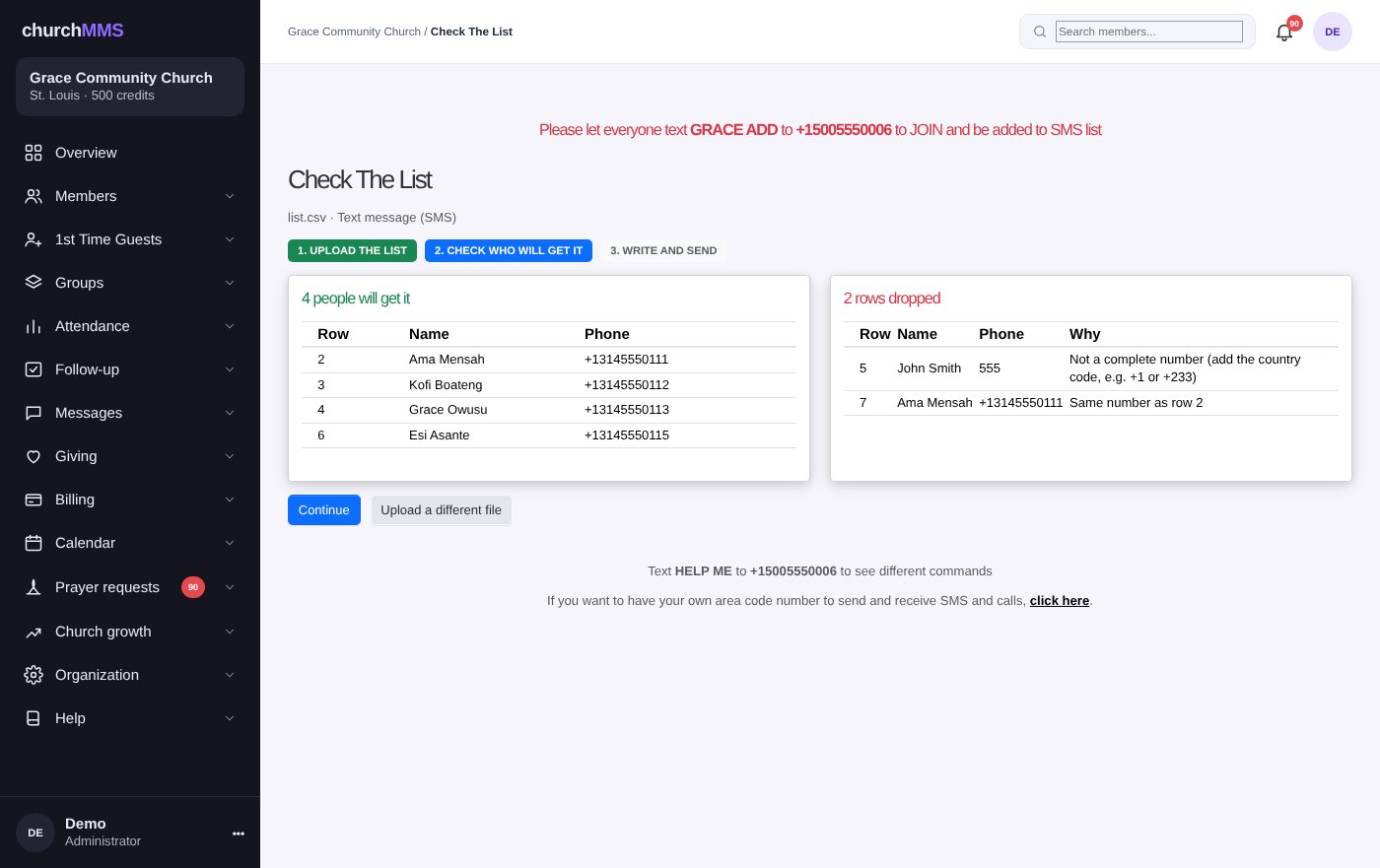
Want to text people who aren't members yet, like everyone who came to a community event? Upload a spreadsheet with NAME and PHONE (or NAME and EMAIL), then send a text, a voice call or an email to just that list. Nobody is added to your member list.
Before anything is sent, ChurchMMS checks every row and shows you who will get the message and which rows were left out, and why (for example a number with missing digits, or someone who replied STOP). It also shows how many credits it will cost. Your last list is saved so you can use it again.
Where to find it: Messages → Send to an uploaded list
Check the list before you send
Your own church phone number
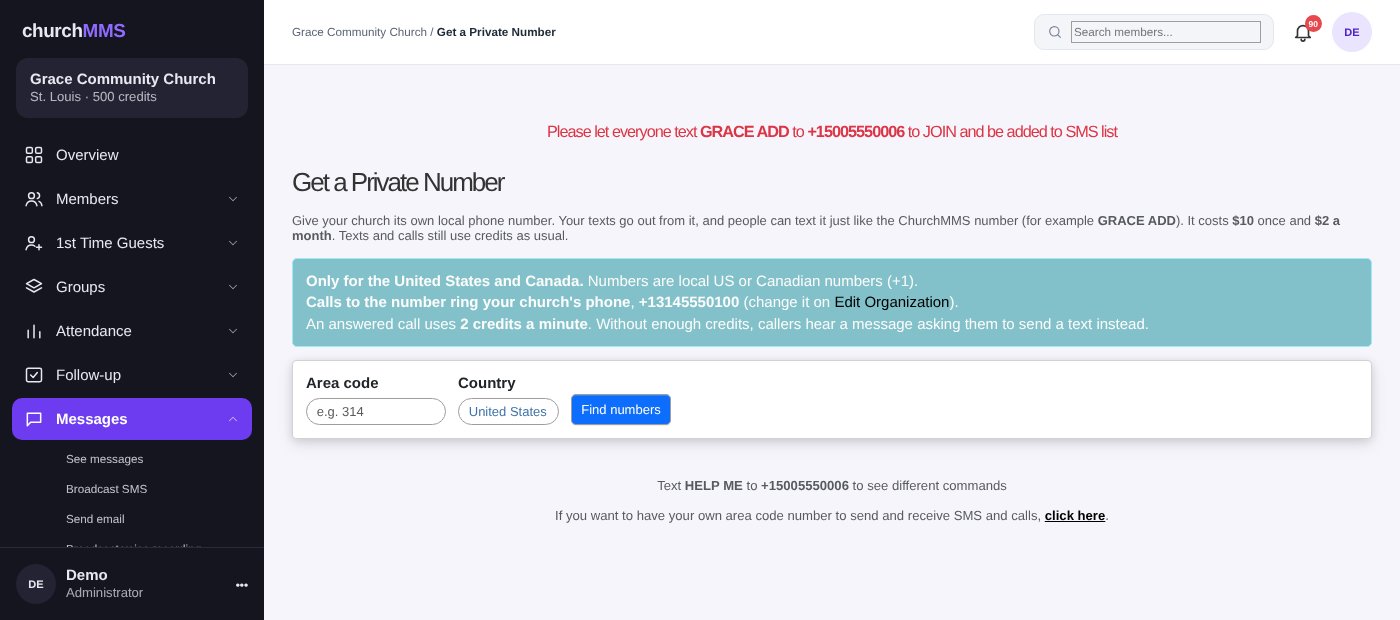
Your church can now have its own local phone number, with the area code you choose. Search by area code, pick a number you like, and pay $10 once and then $2 a month. Your texts go out from that number, and replies come back to your ChurchMMS inbox.
When someone calls the number, the call is passed on to your church's main phone, so you never miss a call. You can let the number go at any time.
Where to find it: Messages → Get a private number
Search for a local number by area code
STOP means stop
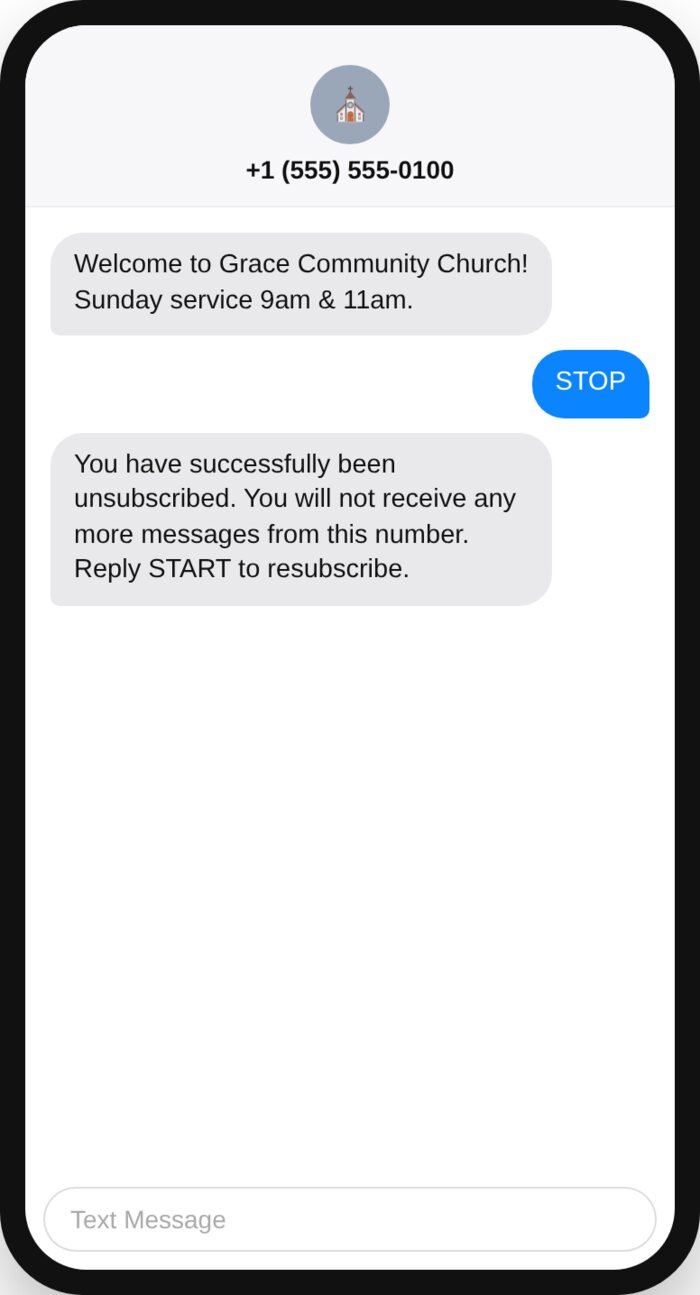
If someone replies STOP (or UNSUBSCRIBE, CANCEL, END or QUIT), ChurchMMS now stops all texts and voice calls to that number straight away, in every church. They can reply START to come back. Their member page shows "Unsubscribed from texts & calls", and they are left out of the broadcast lists so you aren't charged for messages that would never arrive.
This protects your church's good name with the phone companies, and it is the right thing to do.
Where to find it: Happens by itself
Replying STOP unsubscribes them
Emails that reach the inbox, with pictures
All ChurchMMS emails now go out through a trusted email service from one churchmms.com address, so fewer of them end up in spam.
When you write an email, a follow-up message or an article, you can now upload, paste or drag in pictures, and they show up properly in people's inboxes.
Where to find it: Messages → Send email
2 new features
Prayer and Care
People share their needs when it is easy to do so. Your church now has simple online forms for prayer and help, and a regular, gentle reminder that the church is there for them.
Prayer request, need assistance and next steps forms
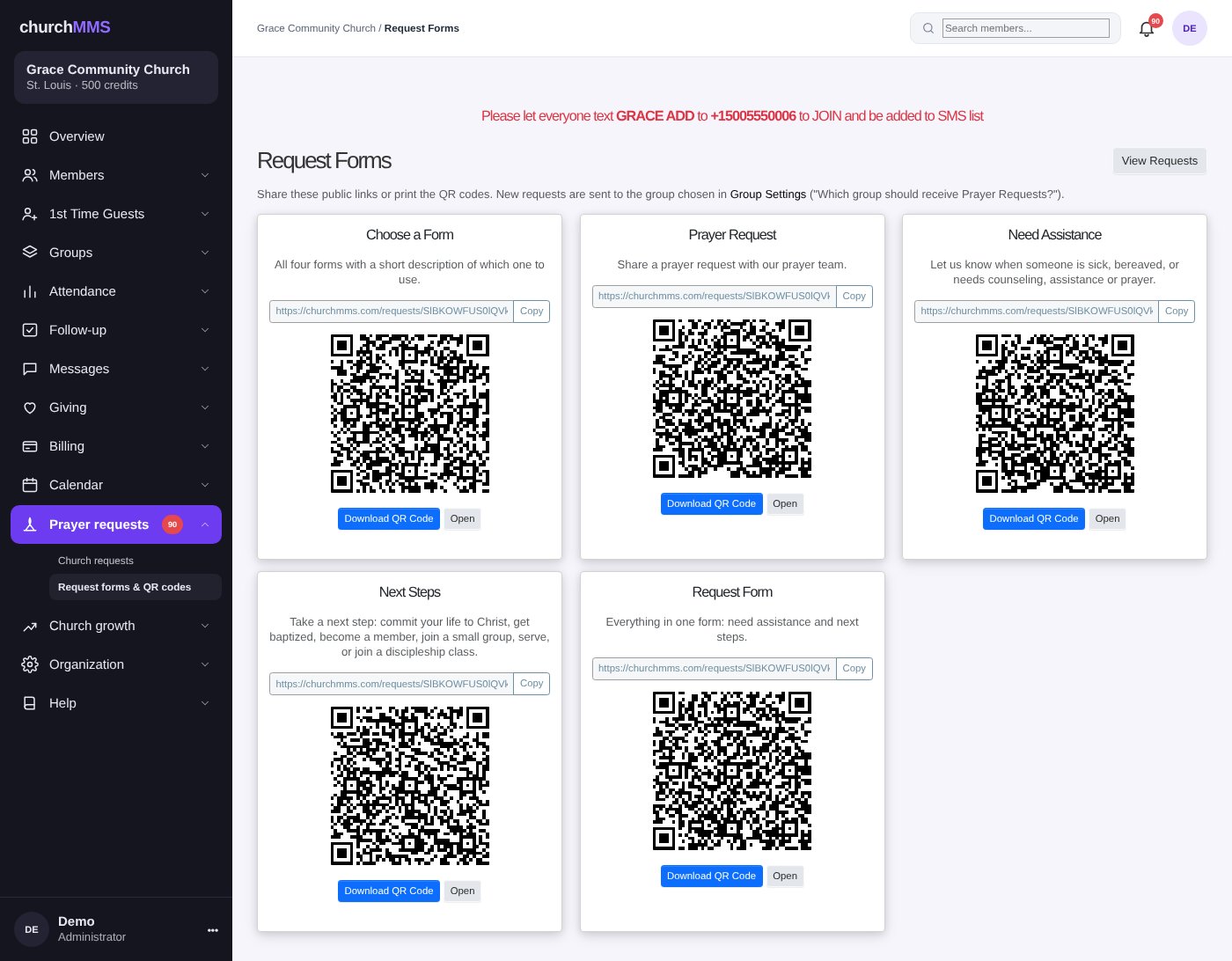
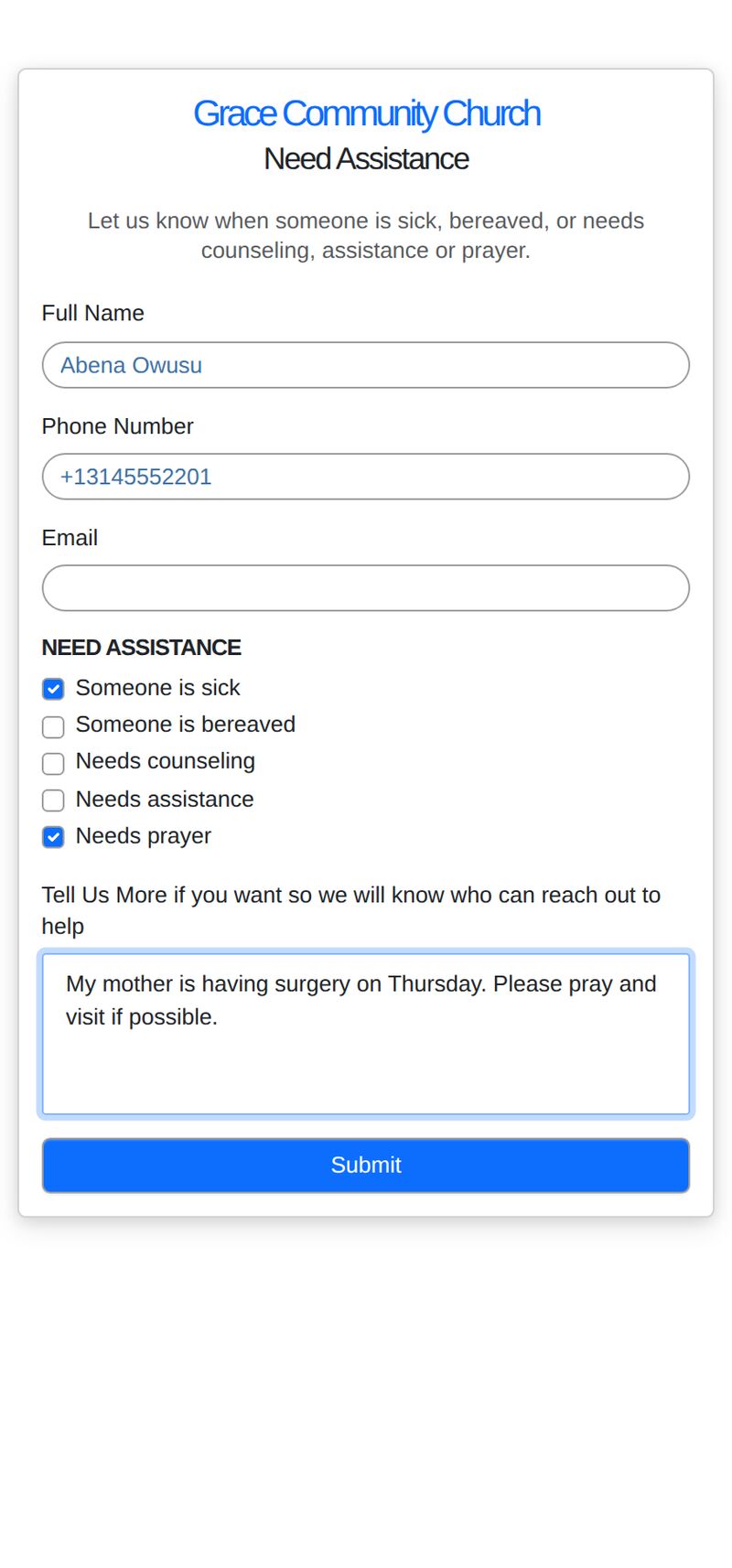
Your church now has four public forms: Prayer Request, Need Assistance (for example food, transport, a hospital visit, counselling), Next Steps (for example baptism, joining a team) and one combined Request Form. Each has its own link and QR code that you can share or print.
Every request arrives on the Church Requests page. Search and filter them, give each one to a member to follow up, and move it from New to Assigned, In Progress and Completed, so nothing is forgotten.
Where to find it: Prayer requests → Request forms & QR codes, and Church requests
Each form has a link and a QR codeThe Need Assistance form on a phone
Prayer and assistance check-in
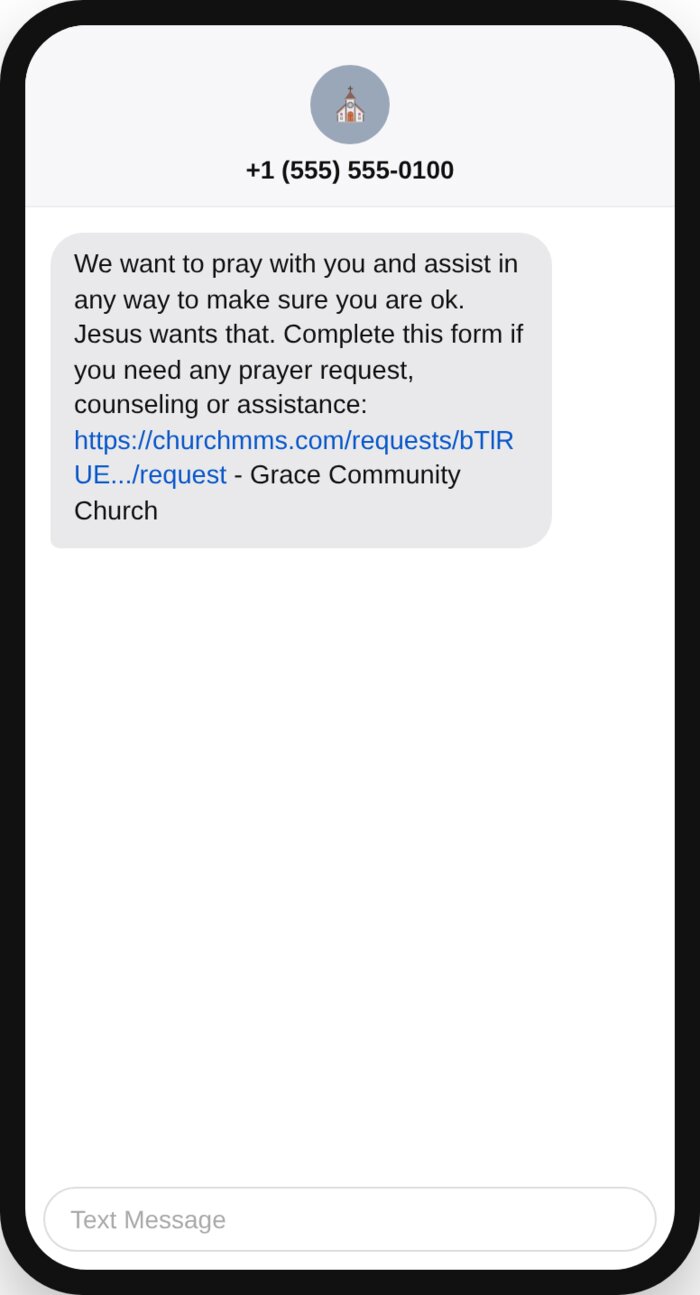
Twice a month ChurchMMS reaches out on your behalf. On the 1st and 15th, committed members get a short text asking if they would like prayer or help, with a link to the Request Form. On the 8th and 22nd, everyone with an email address gets the same invitation by email.
If your church doesn't have enough credits for the texts, that round is skipped rather than half-sent. You can turn the texts or the emails off on Reminder Settings.
Where to find it: Messages → Reminder settings
The check-in text members receive
1 new feature
Giving
A change in giving is often the first sign that someone is going through a hard time. ChurchMMS can now help you notice.
Giving tracking and lapsed givers
Each month, tick who gave. ChurchMMS does not store amounts, only whether someone gave, so it stays simple and private.
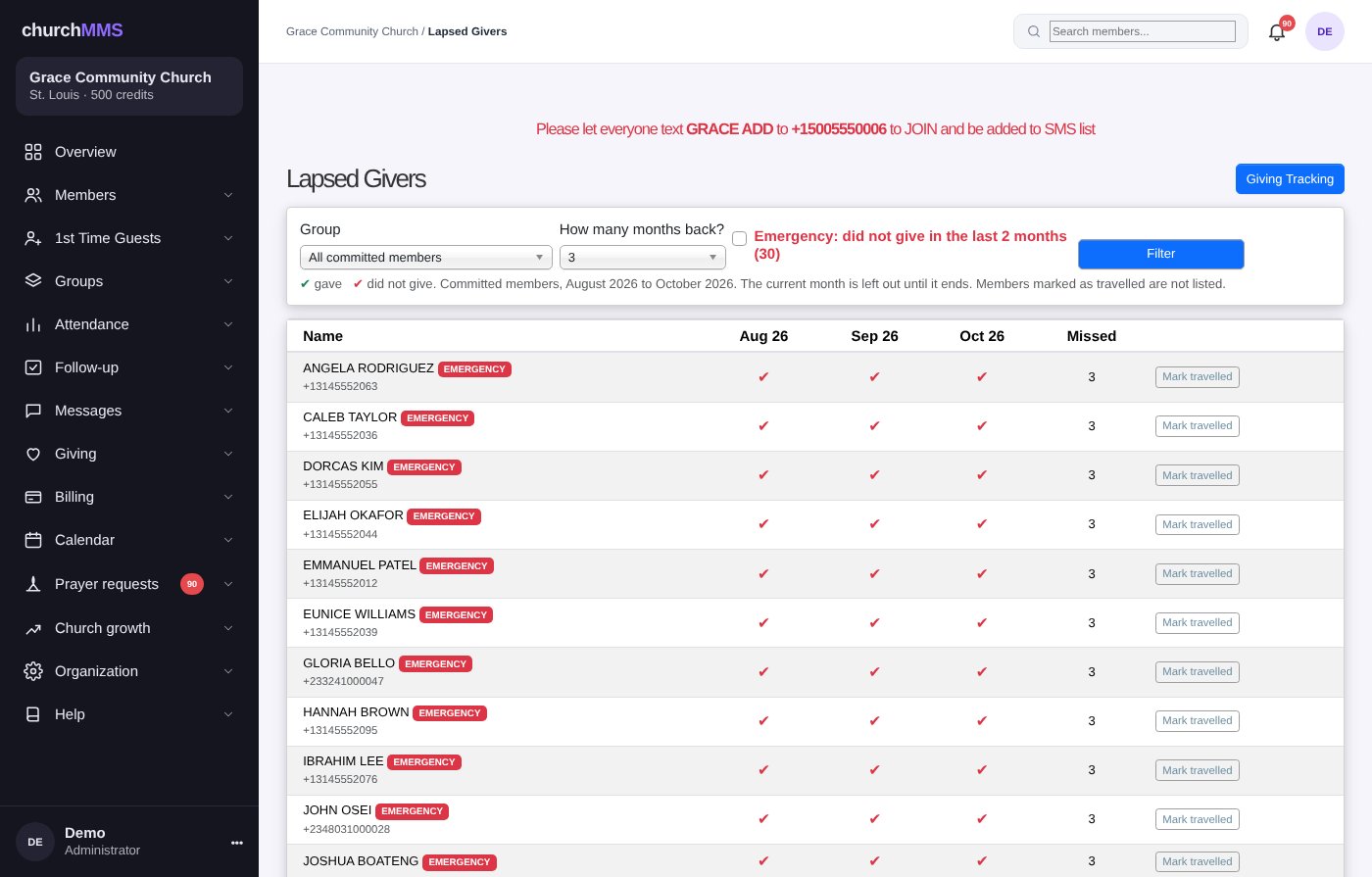
The Lapsed Givers page shows a month-by-month grid for each giver, and puts an alert next to anyone who has stopped giving for the number of months you choose. It is a gentle way to spot someone who may need a call. People who are travelling can be marked so they are left out.
Where to find it: Giving → Giving tracking
Lapsed givers, with alerts
3 new features
Church Calendar and Events
Your church now has a proper calendar, and ChurchMMS can remind people about events by text, email or even a phone call.
A church calendar with repeating events
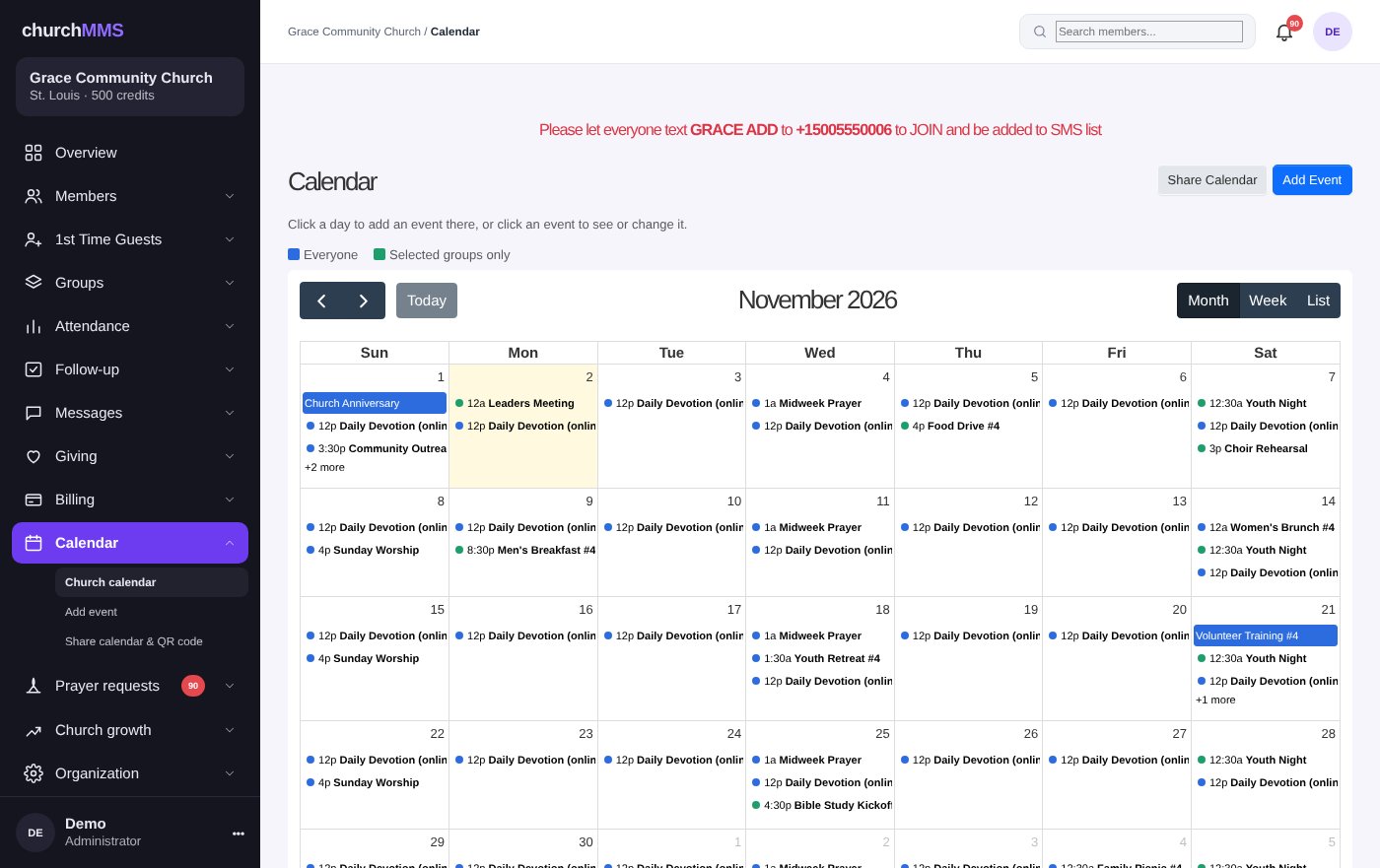
The new Calendar menu shows your events by month, week or as a list. Click a day to add an event. Events can happen once, or repeat: every day, every week on the days you pick, every month on the same date, on the same weekday (like the 2nd Tuesday or the last Friday), or every year. You can cancel a single date without touching the rest.
Events can be for everyone, or only for the groups you choose.
Where to find it: Calendar → Church calendar
The church calendar
Share your calendar
Share a public calendar page and QR code with your church. There is a link for each group too, showing everyone's events plus that group's events. People can add the calendar to Google, Apple or Outlook with one tap, and it stays up to date by itself. Members also see their next 30 days of events on their own profile page.
Where to find it: Calendar → Share calendar & QR code
Event reminders by text, email or phone call
Add as many reminders as you like to any event, for example one a week before and one an hour before. Each reminder can be a text, an email or a voice call that plays one of your recordings. ChurchMMS sends them at the right time, for every date of a repeating event. Text and call reminders are skipped if you don't have enough credits for everyone.
Where to find it: Calendar → Add event → Reminders
6 new features
Running Your Church Account
Finally, a group of changes that make ChurchMMS easier to look at, easier to share with your team, and clearer about what you are spending.
The Overview page
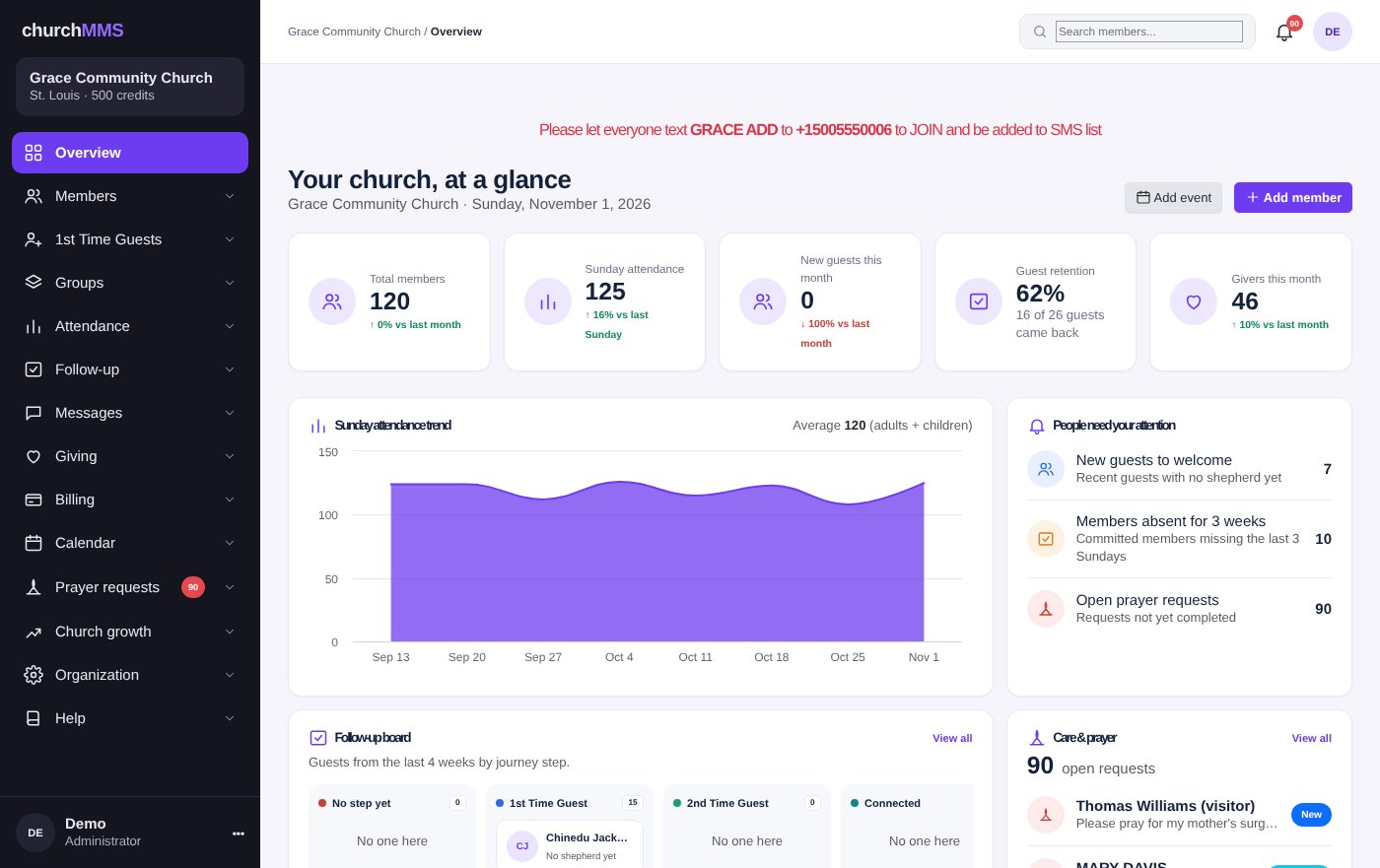
When you sign in you now land on the Overview: your church at a glance. You see members and how they are growing, Sunday attendance over the last 8 weeks on a chart, new guests, guest retention, a follow-up board showing guests at each journey step, prayer requests, recent guests and upcoming events.
Where to find it: Overview (the first page after you sign in)
The Overview page
Choose the look of your app
ChurchMMS now comes in four looks: Classic, Navy Top Menu, Blue Right Menu and Dark Violet. New churches start on Dark Violet, which has a clean menu on the left with simple icons. The church owner can change the look at any time on Edit Organization. The menus have also been tidied, with a new Help menu that holds the User Guide, the full manual as a PDF and a Contact Support link.
Where to find it: Organization → Edit organization
Team logins
The church owner can now give other people their own login to the same church, for example a secretary, a pastor or a follow-up leader. Add their email and either send them a link to set their password, or set one for them. Team logins can do the day-to-day work and buy credits, while editing the organization and managing logins stay with the owner.
Where to find it: Organization → Team logins
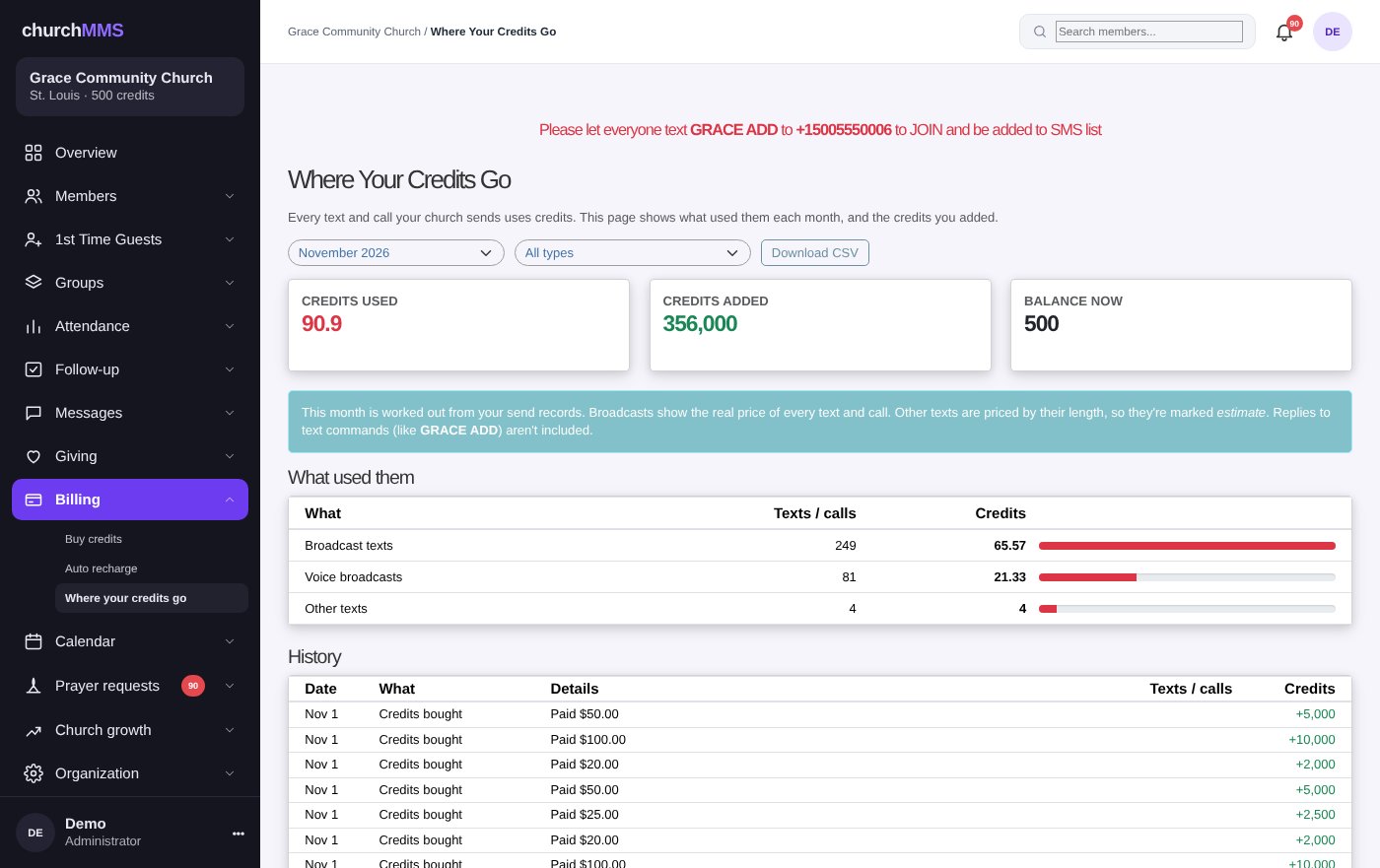
Where your credits go
A new page shows exactly how your credits were used each month: how many were used, how many were added and your balance, with a breakdown by type (broadcast texts, follow-up messages, reminders, calls and so on). Filter by type, look back over earlier months, or download it as a spreadsheet. Billing is now open to every team login, not just the owner.
Where to find it: Billing → Where your credits go
Where your credits go
A weekly summary and a setup checklist
Every Monday morning the church owner and team get a short summary of the week: attendance, new guests, regulars who were missing, open prayer requests, birthdays coming up and upcoming events, each with a link to act on it.
New churches see a setup checklist with 6 simple steps (add members, create groups, send a message, take attendance, share your links, add your team), with a short note on why each one matters. New churches also start with free starter credits, so they can try sending a text to their own phone before they buy credits.
Where to find it: Your email inbox, and the Overview page
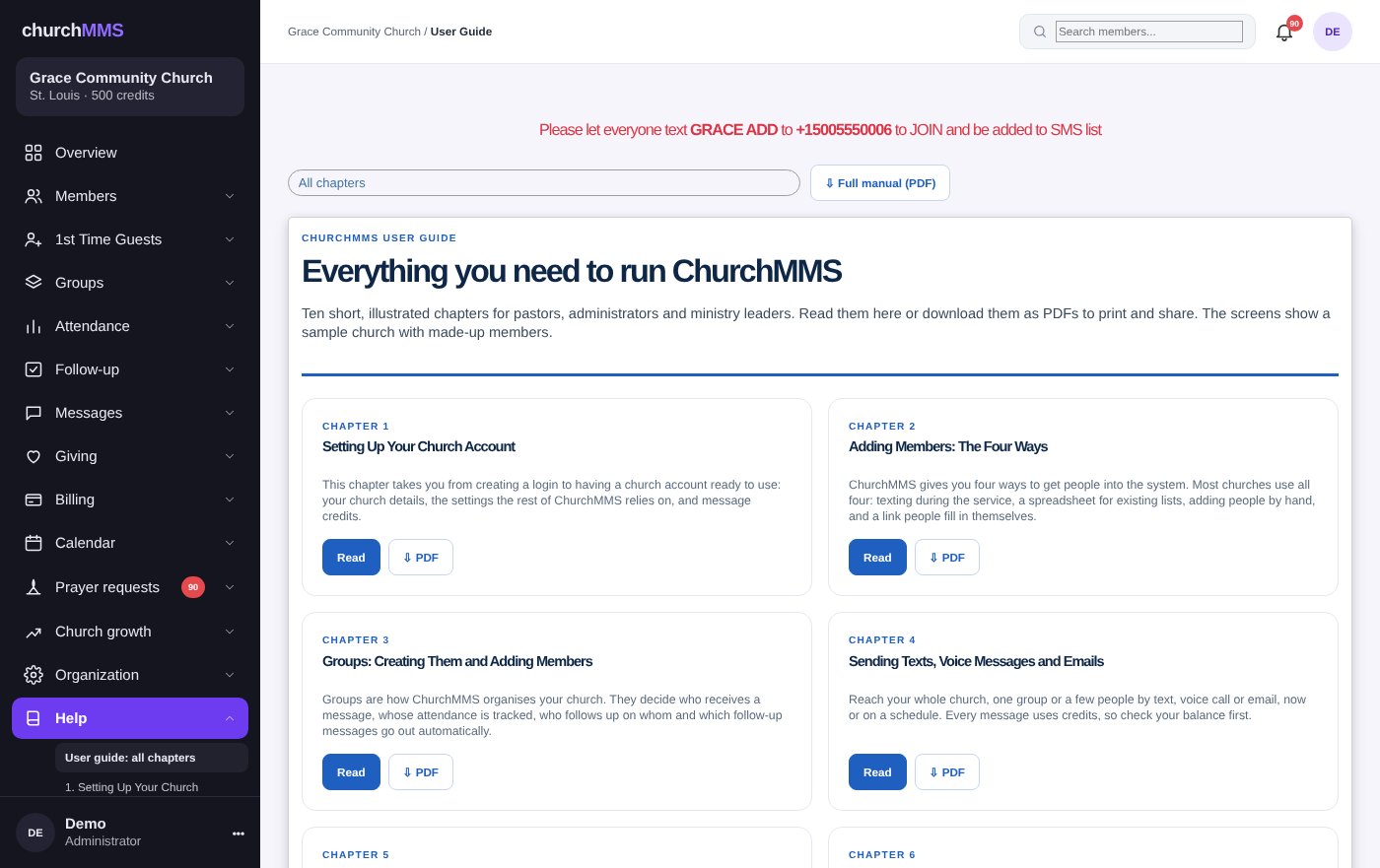
A User Guide with pictures
There is now a full User Guide in 10 chapters, written in plain English with screenshots: setting up, members, groups, messages, attendance, follow-up, guests, giving, prayer requests and church growth. Each chapter can be downloaded as a PDF, and so can the whole manual.
Where to find it: Help → User guide
Every chapter has step-by-step pictures
Ready to try them?
Sign in and look for these features in your menu, or create a free account for your church today.
If you have an idea for the next new feature, we would love to hear it.